Cloud Container Registry (CCR)
Product Updates
| Function Name | Functional Description | Release Time | Release Region | Related Documents |
|---|---|---|---|---|
| Full Functions | This is the first public beta of the Cloud Container Registry (CCR). Please contact your account manager to apply for a trial. | 2022-11-30 | All | - |
| Image Tags and Cloud Product Integration | Add the ability to add custom tags with AI attributes to images, and complete the integration with ACP, CCI, and Cloud Lab. You can select private images in CCR when creating resource instances on cloud products | 2022-12-31 | All | - |
| Support Namespace Unsubscription and Renewal | Add the ability to unsubscribe from and renew a newly added namespace, which means that you can unsubscribe from the namespace before resource expiration or renew it for continued use before resource release | 2022-03-31 | All | - |
| Add Image Center and Build Image | A newly added image center can pull official image and provide the ability to build an image, and can also generate a new image and automatically push it to the specified namespace with one click through base image and custom configuration | 2022-06-15 | All | - |
| Users can add the context address after creating an image | Users can specify the context address and create an image | 2023-11-30 | All | - |
Product Overview
What is Cloud Container Registry (CCR)?
Sensecore Cloud Container Registry (CCR) is a secure hosting platform that supports full lifecycle management of container images and provides easy-to-use and reliable image management functions.
CCR is a secure hosting platform that provides full lifecycle management for OCI-compliant cloud-native artifacts such as container images and Helm Charts. It also provides easy-to-use and reliable image management capabilities to help developers conduct AI task training in a more flexible manner.
CCR mainly has the following functions:
- Full lifecycle management
Support full-lifecycle hosting capabilities such as push, pull, and cleanup of various native artifacts, and add AI feature tags to images for classified management.
- Multi-dimensional security guarantee
Support intranet and Internet access control, image security scanning, and other functions to ensure data security and access compliance.
- Fine-grained permission control
Provide container image isolation capabilities and fine-grained permission management, and support assigning corresponding access permissions to different users.
- Seamless integration with cloud products
Seamlessly integrate with cloud products such as ACP, CCI, and AICL to provide personalized capability support for AI training and application deployment.
Product Superiority
CCR is built on security and reliability, and provides open and compatible native artifact hosting services through simple process operations.
- Native compatibility
Support full lifecycle management of cloud-native artifacts that comply with OCI standards, such as container images and Helm Charts.
- Ease of use
Free users from complex tasks such as building, operating, and maintaining image repositories, and let them focus on their businesses and enjoy the ultimate cloud service experience through simple operations and processes.
- Security and reliability
Support VPC and Internet access control as well as image security scanning, and provide multi-dimensional vulnerability reports to ensure business security of users.
Application Scenarios
Full lifecycle management of artifacts
Provide full lifecycle management capabilities for artifacts, including push, pull, and synchronization, and perform unified and refined management on all artifacts in the process of AI application implementation.
- Provide a comprehensive image permissions management system, facilitating team collaboration management
- Support stable and fast image upload and download services
AI development training
Prepare common preset images for AI developers, and also provide flexible customization capabilities to meet the requirements of deep learning engines and development libraries in special scenarios.
- Provide the images required for the implementation of common AI applications, and regularly synchronize the latest versions of official images
- Seamlessly integrate with cloud products, and quickly upload custom images for development training or application deployment
About Billing
CCR uses a yearly/monthly subscription billing mode, and charges are made when you purchase a capacity of namespaces.
| Resource Type | Specification Attribute | Billing Mode |
|---|---|---|
| Namespace | Capacity | Yearly/monthly subscription, one-time payment at the time of purchase (capacity measured in GB, and the subscription duration measured in months/years) |
Basic Concepts
| Term | Definition |
|---|---|
| Container | It is a running instance created through a container image, and one node can run multiple containers. The essence of a container is a process, but unlike a process directly executed on the host machine, a container process runs in its own independent namespace. The relationship between an image and a container is like that between a class and an instance in object-oriented programming. The image is a static definition, while the container is a runtime entity of the image. Containers can be created, started, stopped, deleted, paused, etc. |
| Container Image | A container image is a containerized standard deliverable for packaging an application and its dependent environment. Based on the Dockerfile, the application can be built as a container image and uploaded to the container image repository, and then you can pull the container image and start the container in the test or production environment. |
| Namespace | A namespace is used to manage multiple image repositories and Helm Charts with associated attributes. It does not directly store container images and Helm Charts, and can be mapped to organizational teams, product projects, or individuals within an enterprise. |
| OCI Specification | In addition to container images, ACR also supports packaging data for different purposes (Helm Chart, CNAB, etc.) in accordance with the structure (list, index, etc.) defined by the OCI Artifact specification into OCI-compliant artifacts to achieve the unified storage, management, and distribution of different types of artifacts. |
Authorization Management
The Cloud Container Registry features refined permission management, and you can use the User Access Control IAM to authorize the roles outlined below for the required users. Role authorization allows other users in your team to possess different permissions for the namespaces you create and facilitates efficient cooperation between teams. For user authorization operations, please refer to [SenseCore Help Center - Beginner's Guide - How to Authorize Users]
| Role Name | Role Description | Role Permission |
|---|---|---|
| Namespace Creator | An namespace creator can create namespaces | ccr.namespace.create (create) |
| Namespace Developer | A namespace developer has operation permissions for images within namespaces, and can upload, pull, and delete these images | ccr.namespace.get (get information), ccr.namespace.operate (manage images) |
| Namespace Owner | With full access to namespaces | ccr.namespace.ownData (full access), ccr.namespace.delete (delete), ccr.namespace.setIamPolicy (grant permissions), ccr.namespace.operate (manage images), ccr.namespace.unsubscribe (unsubscribe), ccr.namespace.unSetIamPolicy (remove permissions), ccr.namespace.renew (renew) |
Quick Start
CCR is a secure hosting platform that provides full lifecycle management for OCI-compliant cloud-native artifacts such as container images and also delivers easy-to-use and reliable image management capabilities. This article is intended to describe how to pull and push images by CCR.
Step 1: Create a namespace
- Log in to the CCR console.
- In the left navigation bar, select “Namespaces”.
- Click “Create a namespace” to complete basic information configuration and then purchase a namespace.
- The namespace can be used normally if its status switches from “Creating” to “Running”.
| Parameter Type | Parameter | Parameter Description |
|---|---|---|
| Purchase Information | Billing Mode | CCR uses a yearly/monthly subscription billing mode, and you can select yearly or monthly subscription. |
| Region and Availability Zone | Select the region and availability zone to create the namespace. | |
| Resource Configuration | Select Product | Select the product to place an order, CCR in this case. |
| Access Level | Select the access level of the namespace: private or public. Public: All images in a pubic namespace are public images by default, and everyone can pull them depending on the image address. Private: All images in a private namespace are private images by default, and only the users who have a permission to pull the images in the namespace can pull them. | |
| Specification | Fill in the capacity size you wish to purchase | |
| Basic Information | Subscription and Resource Group | Select the subscription and resource group to which the resource belongs. |
| Namespace Name | Fill in the name of the namespace, which supports lowercase English letters, numbers, and dashes “-”, starting with lowercase English and including 1 to 63 characters. |
Step 2: Push and pull an image
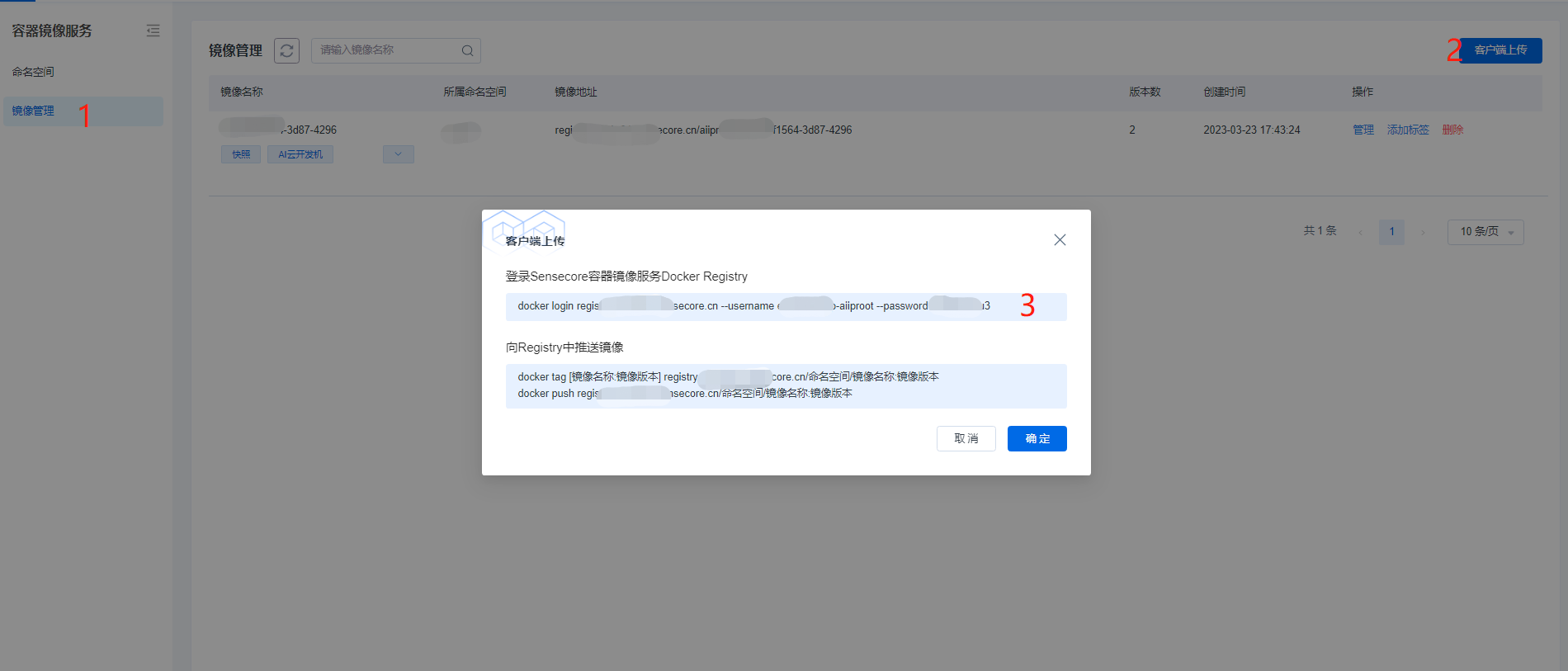
Click “Image Management” to enter the image list. Please install and configure the Docker client in advance, as the command line actions need to be performed on the Docker client. After creating the namespace, enter the [Image Management] module and click “Client Upload”, move the cursor next to the command to copy the commands.
Please note: The image registry address may change depending on the environment, you can directly click “Client Upload” during use. Specific results shall be subject to the provided address, the following address is for reference only.
Use the following command to log in to the CCR Docker Registry. When “Login Succeeded” is displayed, your login is successful.
docker login registry.sensecore.cn --username [your username] --password [your password]
Use the following command to tag an image.
docker tag [image name:image version] registry.sensecore.cn/[namespace]/[image name:image version]
Use the following command to push an image. On the “Image Management” page, click the uploaded image name to enter the “Version Management” page. If you can see the pushed image and its relevant version name, image size, and Digest information in the “Version Management” page, the image has been successfully pushed.
docker push registry.sensecore.cn/[namespace]/[image name:image version]
Use the following command to pull an image.
docker pull registry.sensecore.cn/[namespace]/[image name:image version]
Step 3: Add a tag
- Log in to the CCR console.
- In the left navigation bar, select “Image Management”.
- On the “Image Management” page, click the “Add Tag” to customize the personalized tag of the image. After adding the tag, the tag can be used to filter images when creating resource instances and tasks on AI Compute Pools, Cloud Container Instances, and Cloud Labs.
| Column Name | Meaning |
|---|---|
| Universal Tag | Sub-products and chip types are universal tags (required). When you create resource instances and tasks in ACP, CCI, and Cloud Lab, images will be filtered by universal tag. Please correctly select tag content to avoid failing to select the desired image |
| Non-universal Tag | Non-universal tags include operating system, driver, development language, training framework, acceleration library, model algorithm, etc., and you can freely fill in the corresponding tag value |
| System Tag | System tags are image sources. When an image is uploaded by a user through a client in CCR, the image source is local. When an image is an image snapshot of the Cloud Lab, the image source is the snapshot and the tag is automatically generated by the system |
Operation Guide
Namespace
Manage a Namespace
Application Scenarios
When you enter the CCR for the first time, you need to purchase namespace resources based on the capacity specification, and you can host images in the namespace after you complete the purchase.
Operating steps
- Log in to the CCR console.
- In the left navigation bar, select “Namespaces”.
- Click “Create Namespace” to purchase a namespace.
- Click “Unsubscribe” to unsubscribe from an unexpired namespace.
- Click “Renew” to renew an unreleased namespace and use it normally.
| Parameter Type | Parameter | Parameter Description |
|---|---|---|
| Purchase Information | Billing Mode | CCR uses a yearly/monthly subscription billing mode, and you can select yearly or monthly subscription. |
| Region and Availability Zone | Select the region and availability zone to create the namespace. | |
| Resource Configuration | Select Product | Select the product to place an order, CCR in this case. |
| Access Level | Select the access level of the namespace: private or public. Public: All images in a pubic namespace are public images by default, and everyone can pull them depending on the image address. Private: All images in a private namespace are private images by default, and only the users who have a permission to pull the images in the namespace can pull them. | |
| Specification | Fill in the capacity size you wish to purchase | |
| Basic Information | Subscription and Resource Group | Select the subscription and resource group to which the resource belongs. |
| Namespace Name | Fill in the name of the namespace, which supports lowercase English letters, numbers, and dashes “-”, starting with lowercase English and including 1 to 63 characters. |
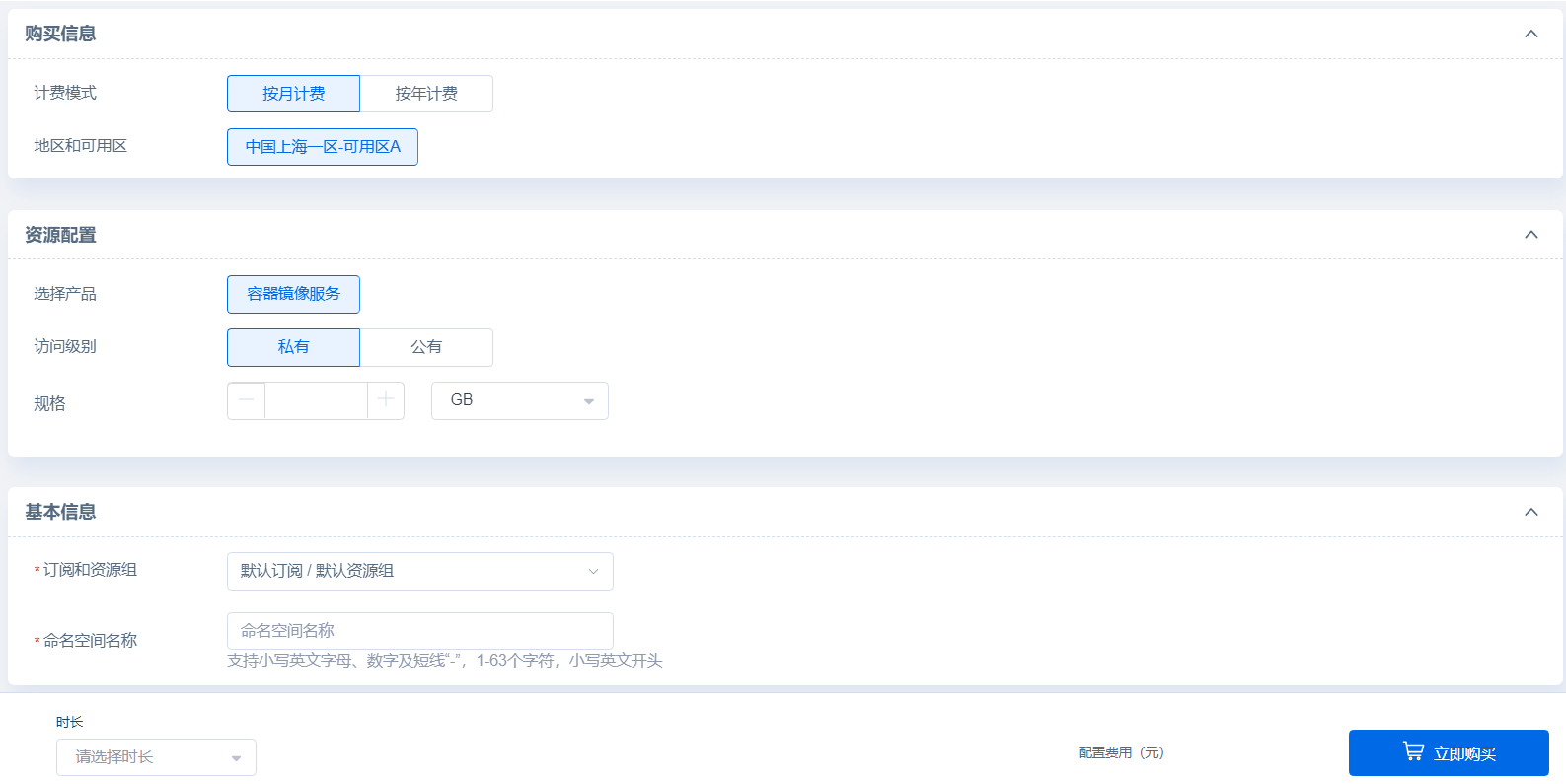
Image Management
View the Image List
Application Scenarios
You can view existing images and their details through image management in the CCR.
Operating steps
- Log in to the CCR console.
- In the left navigation bar, select “Image Management”.
- On the Image Management page, you can view the detailed information of the specified image. The items in the image list and their meanings are as follows:
| Column Name | Meaning |
|---|---|
| Image Name | The name of the image |
| Image Tag | You can customize image tags with AI attributes |
| Namespace | The namespace to which the image belongs |
| Image Address | The address of the image. You can pull the image on the Internet or SenseCore intranet |
| Commits | The number of all versions of the image |
| Creation Time | The first time to upload the image |
| Action | Manage and delete images |
Upload Images on the Client Side
Application Scenarios
You can upload an image to the namespace in the CCR through the client and manage the image.
Operating steps
- Log in to the CCR console.
- In the left navigation bar, select “Image Management”.
- Click “Client-side upload”, and copy the docker login command to log in to the Sensecore CCR Docker Registry.
- Copy the docker tag command to add version information to the image, and use the docker push command to push the image to the Registry.
Manage Images
Application Scenarios
You can view the basic information and version details of an image through Image Management in the CCR.
Operating steps
- Log in to the CCR console.
- In the left navigation bar, select “Image Management”.
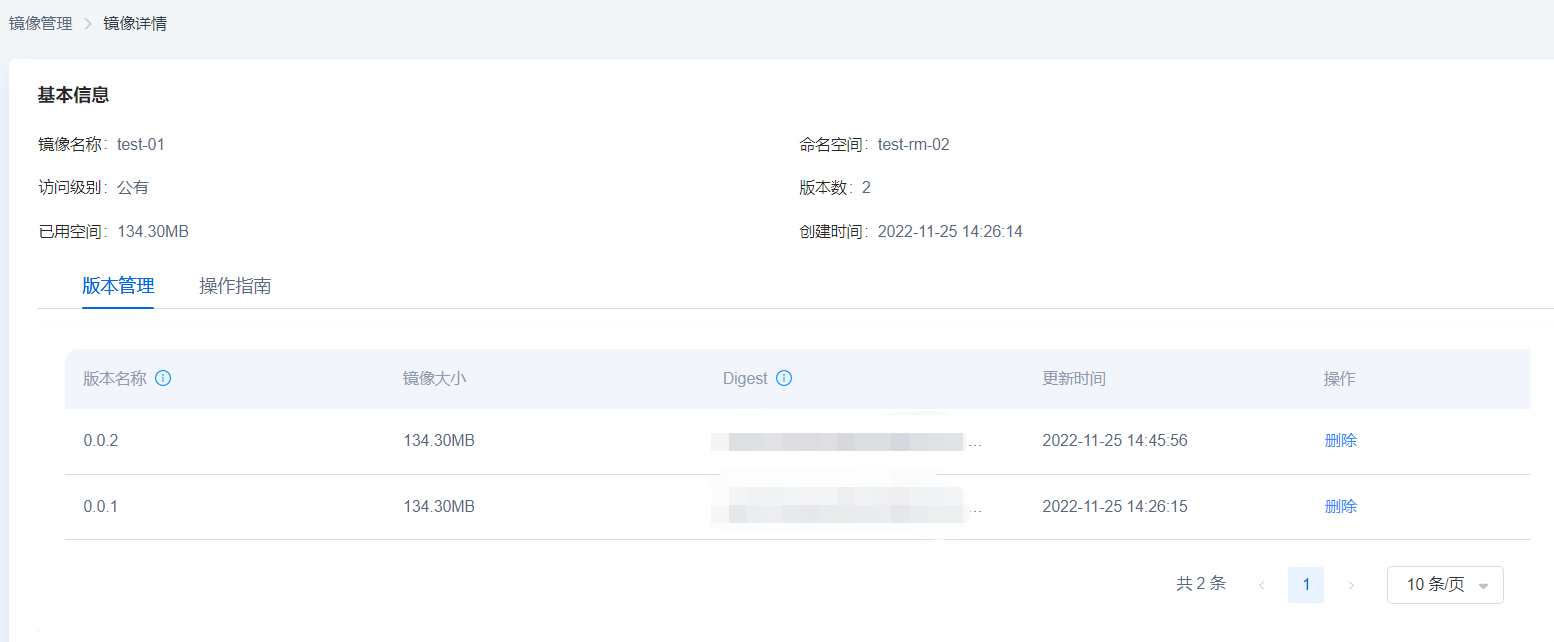
- Click the Manage button on the Image Management page and enter the image details to view basic information, version information, and operation guide.
- Through the version management template, you can view the information of multiple versions of the image and selectively delete some. The items in the version management list and their meanings are as follows:
| Column Name | Meaning |
|---|---|
| Version Name | The version name of the image. If you repeatedly upload images with the same version number, the version name will become invalid. To avoid occupying space, please delete it as soon as possible |
| Image Size | The size of the space occupied by this image version |
| Digest | The summary information about the image. It appears in the last line when you download the image |
| Updated At | The latest update time of this image version |
| Action | Delete image versions |
Add Tag
Application Scenarios
You can use the tagging function in the CCR service to add custom tags with AI attributes to images, so as to classify and manage images with the same features.
Operating steps
- Log in to the CCR console.
- In the left navigation bar, select “Image Management”.
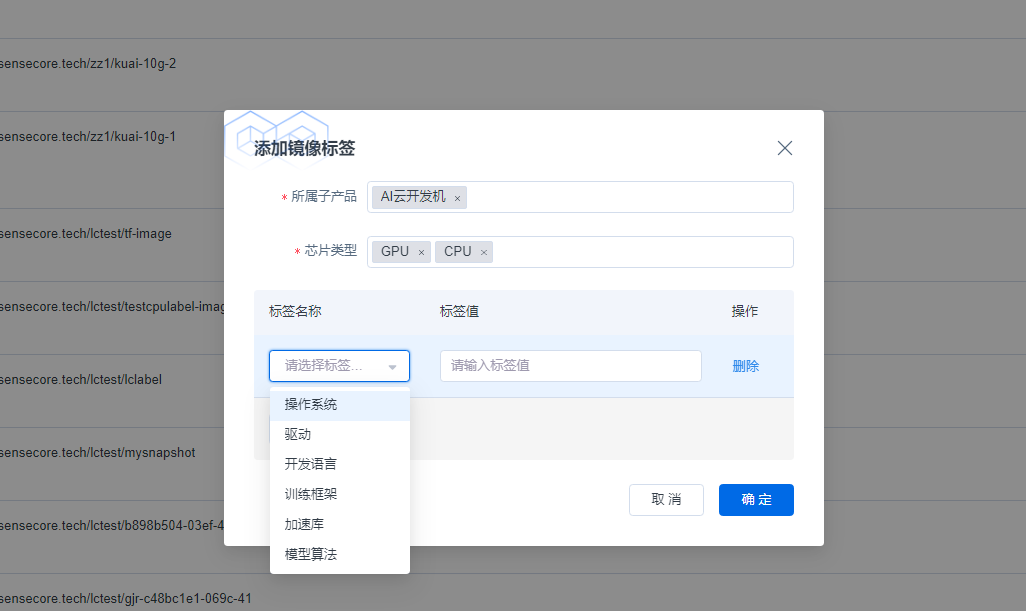
- Click the Add Tag button on the Image Management page to customize a personalized tag of the image. The tag content is as follows:
| Column Name | Meaning |
|---|---|
| Universal Tag | Sub-products and chip types are universal tags (required). When you create resource instances and tasks in ACP, CCI, and Cloud Lab, images will be filtered by universal tag. Please correctly select tag content to avoid failing to select the desired image |
| Non-universal Tag | Non-universal tags include operating system, driver, development language, training framework, acceleration library, model algorithm, etc., and you can freely fill in the corresponding tag value |
| System Tag | System tags are image sources. When an image is uploaded by a user through a client in CCR, the image source is local. When an image is an image snapshot of the Cloud Lab, the image source is the snapshot and the tag is automatically generated by the system |
Build Images
Application Scenarios
You can use the image building function to build a private image based on an official image provided by SenseCore, or using Dockerfile.
Operating steps
- Log in to the CCR console.
- In the left navigation bar, select “Image Management”.
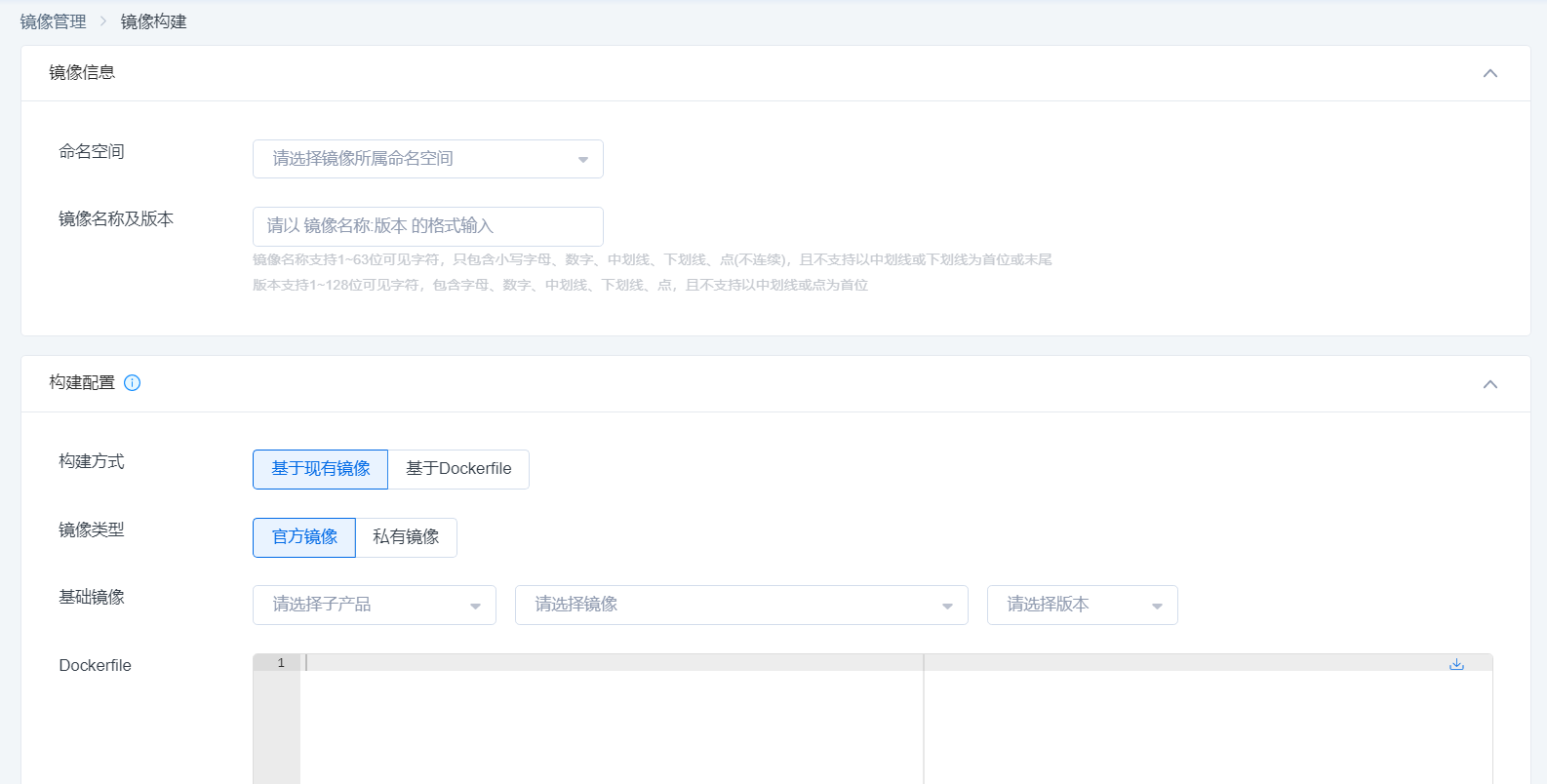
- Click "Build Image" and enter the image information and build configuration. Currently, up to 5 private images per namespace can be built at a time.
| Parameter | Parameter Description |
|---|---|
| Namespace | Select a namespace to store images. After an image is built, the image will be automatically pushed to the namespace. |
| Image Name and Version | Enter the information in the format of image name:version. An image name can contain 1 to 63 visible characters, including lowercase letters, numbers, strike-through, underlines, dots (non-continuous), and cannot begin or end with a strikethrough or underscore. Version can contain 1 to 128 visible characters, including letters, numbers, strike-through, underline, dots, and cannot begin with a strikethrough or dot. |
| Building Method | You can build images based on an existing image or Dockerfile. |
| Image Type (based on existing images) | You can select official images provided by SenseCore or private images that you have uploaded. |
| Base Image (based on existing images) | You can select image name and version number based on existing images. |
| Dockerfile | You can enter the information of Dockerfile, and click the Download button on the right to download the latest Dockerfile. |
| Notes | Currently, the image building function is based on a CPU server, instead of relying on GPU. The Docker image source may take too long to pull or fail in pulling. It is recommended to use the address of container image registry as the base to build an image source. Some Internet addresses show connection failure or access timeout, resulting in the failure of image building. Therefore, it is not recommended to access such Internet addresses. Problems with sources such as apt-get and yum-repo may lead to the failure of updating or installing packages. Therefore, domestic sources are recommended. Problems with pip sources may lead to the failure of downloading and installing pip. You are advised to use domestic sources and specify an address in Dockerfile. The image building process will fail if the memory limit is exceeded. It is necessary to optimize Dockerfile in advance and reduce the memory usage during image building. |
- Enter the information and click OK. You will go to the list of building records and can view the basic information of image building.
| Column Name | Meaning |
|---|---|
| Build ID | Unique identifier of a building record. |
| Image Name | The name of the image you enter when building an image. |
| Image Version | The version number of the image you enter when building an image. |
| Dockerfile | The Dockerfile you enter when building an image. You can click Dockerfile to view it in a popup window. |
| Start Time | The time when you start building an image. |
| Elapsed Time (s) | Total elapsed time you use to build this image. |
| Build Status | Image building status, including building, success, and fail. |
| View Log | You can click this to view build log information in a popup window. You can perform troubleshooting and adjustment according to log information when image building fails. |
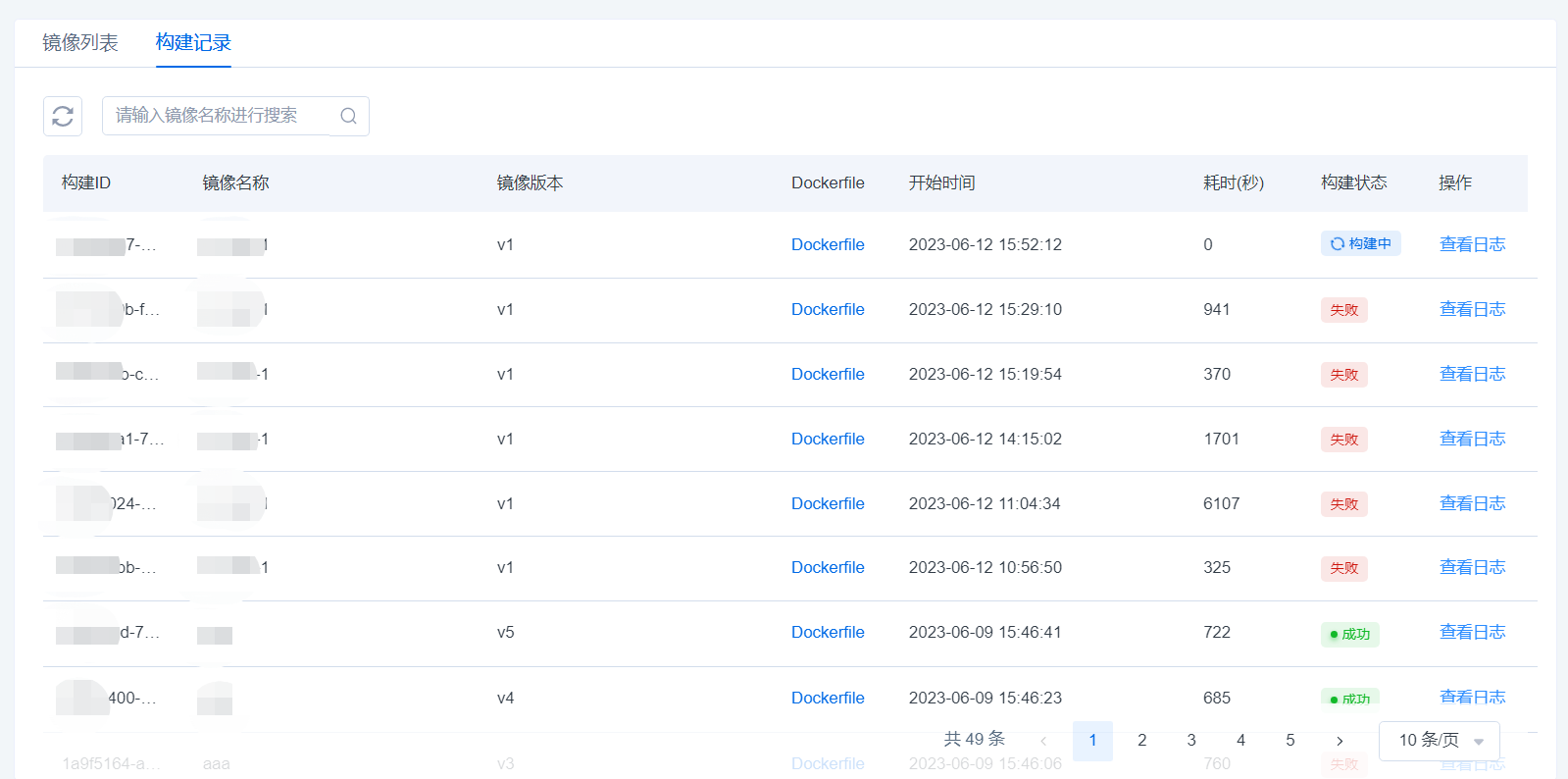
Image Center
Application Scenarios
You can view the information of all the official images provided by SenseCore in the image center, and pull images to a local directory by setting addresses.
Operating steps
- Log in to the CCR console.
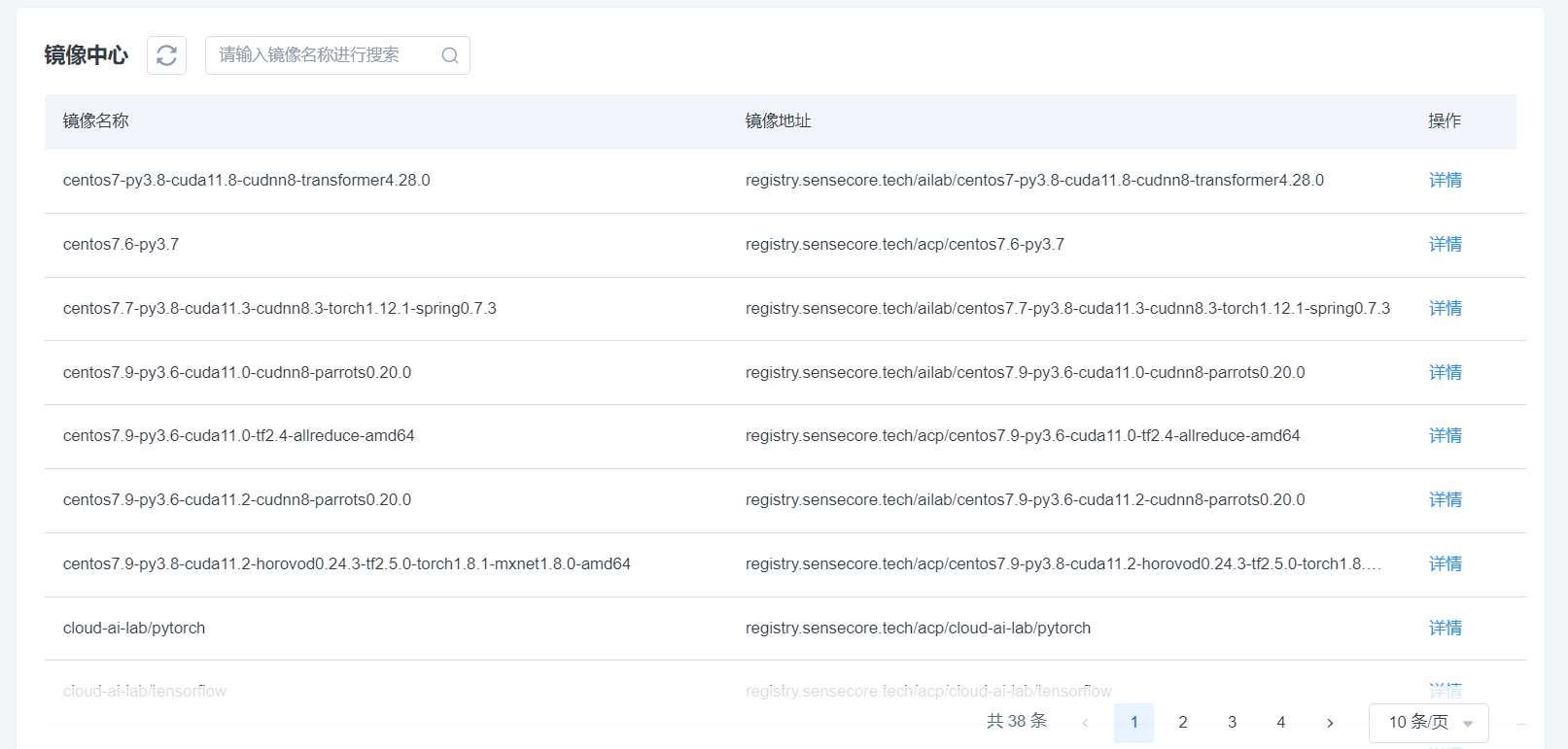
- In the left navigation bar, select "Image Center" to view the information official images.
| Column Name | Meaning |
|---|---|
| Image Name | The name of an official image. |
| Image Address | The address of an official image. You can click the icon to the right of the address to copy it. |
| Details | You can click this button to go to the Details page of an official image. |
| Version Name | The version name of an official image. |
| Image Size | The size of this image version. |
| Digest | The summary information of the image. When you download an image, this value will appear in the last line. |
| Updated At | The latest update time of this image version. |