SenseNova
This manual mainly introduces the basic operations of service activation, API calls, and bill viewing for the SenseNova service. If you encounter any issues while using the SenseNova service, you can contact us through the official customer service channel.
1 Account Security Settings
After successfully logging into the SenseCore Platform, you can go to Console - Account Center - Security Management - Account Security Settings page to view account information and perform security settings:
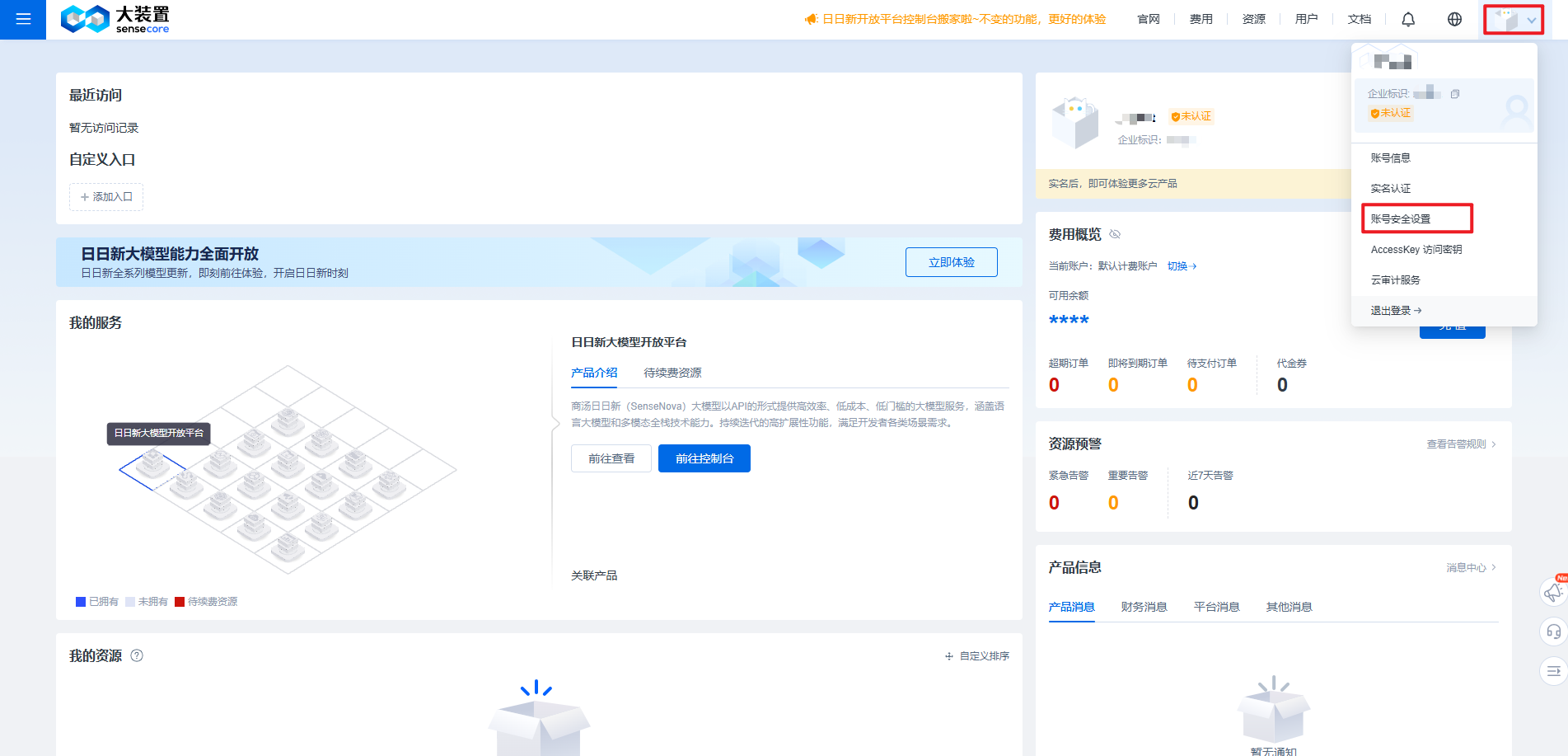
Security Phone Number - Click "Modify" and follow the prompts to change the phone number. The phone number can be used for login, password reset, and receiving notifications.
Security Email - Click "Modify" and follow the prompts to change the email. The email can be used for password reset and receiving notifications.
Login Password - Click "Modify" and follow the prompts to change the password.
2 Activating and Viewing My Resources
First-time Activation of SenseNova Service
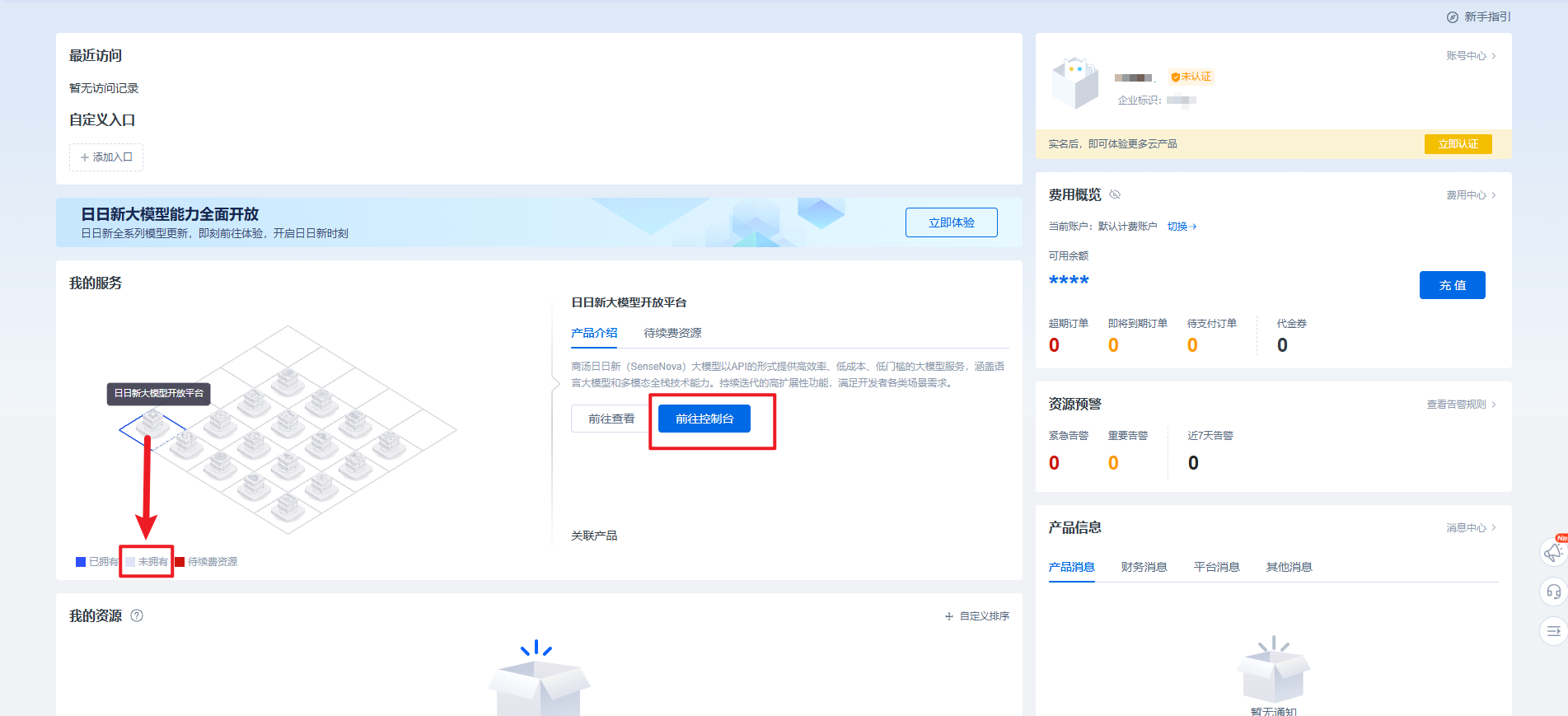
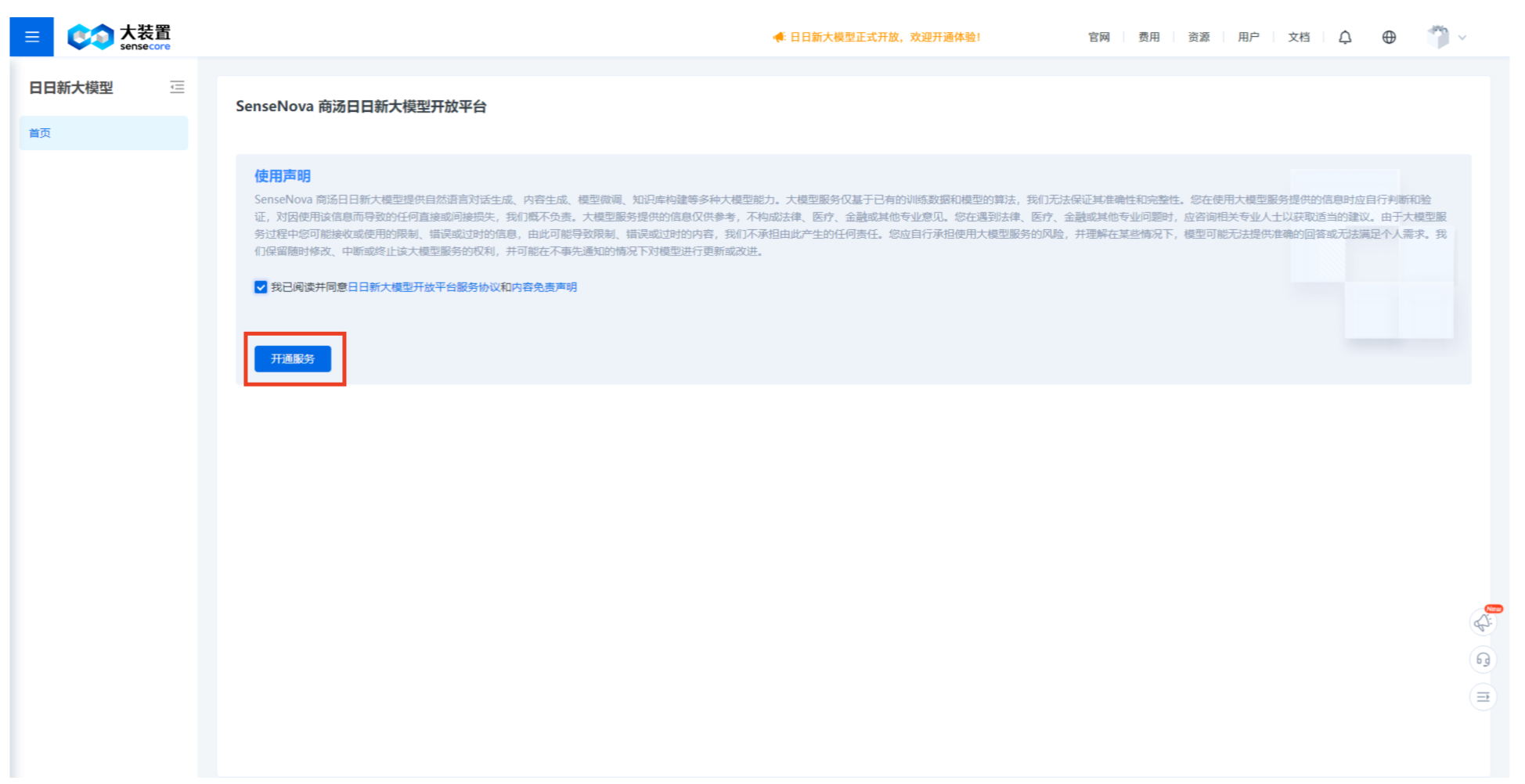
When you complete registration and log in to the console for the first time, the service status is "Not Owned". You need to manually confirm and activate the SenseNova service on the SenseCore Platform console. Once activated, you can start calling the SenseNova service API.
View Subscribed Resources
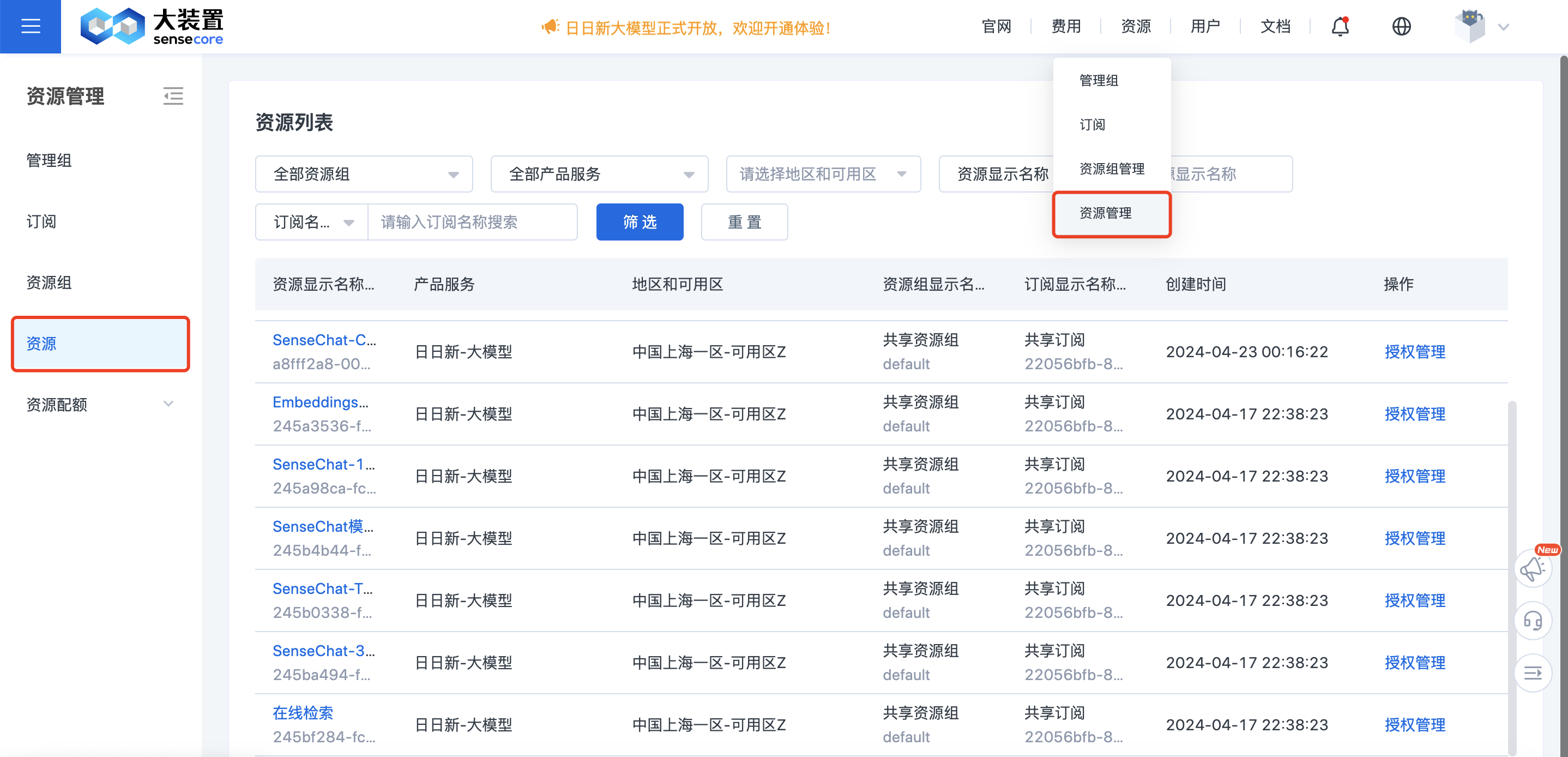
You can view your current subscriptions by visiting the SenseCore Platform Console - Resources - Resource Management.
3 Obtaining Access Keys
You can create an Access Key for your SenseCore Platform account, which you need to use for authentication when calling the SenseNova service API.
An Access Key includes Access Key ID and Access Key Secret:
- Access Key ID: Used to identify the user.
- Access Key Secret: Used to authenticate the user's key. The Access Key Secret is your important identifier, please keep it secure and do not disclose it to others.
You can view, add, or remove Access Keys by visiting SenseCore Platform Console - Account Center at the top right - Access Key page.
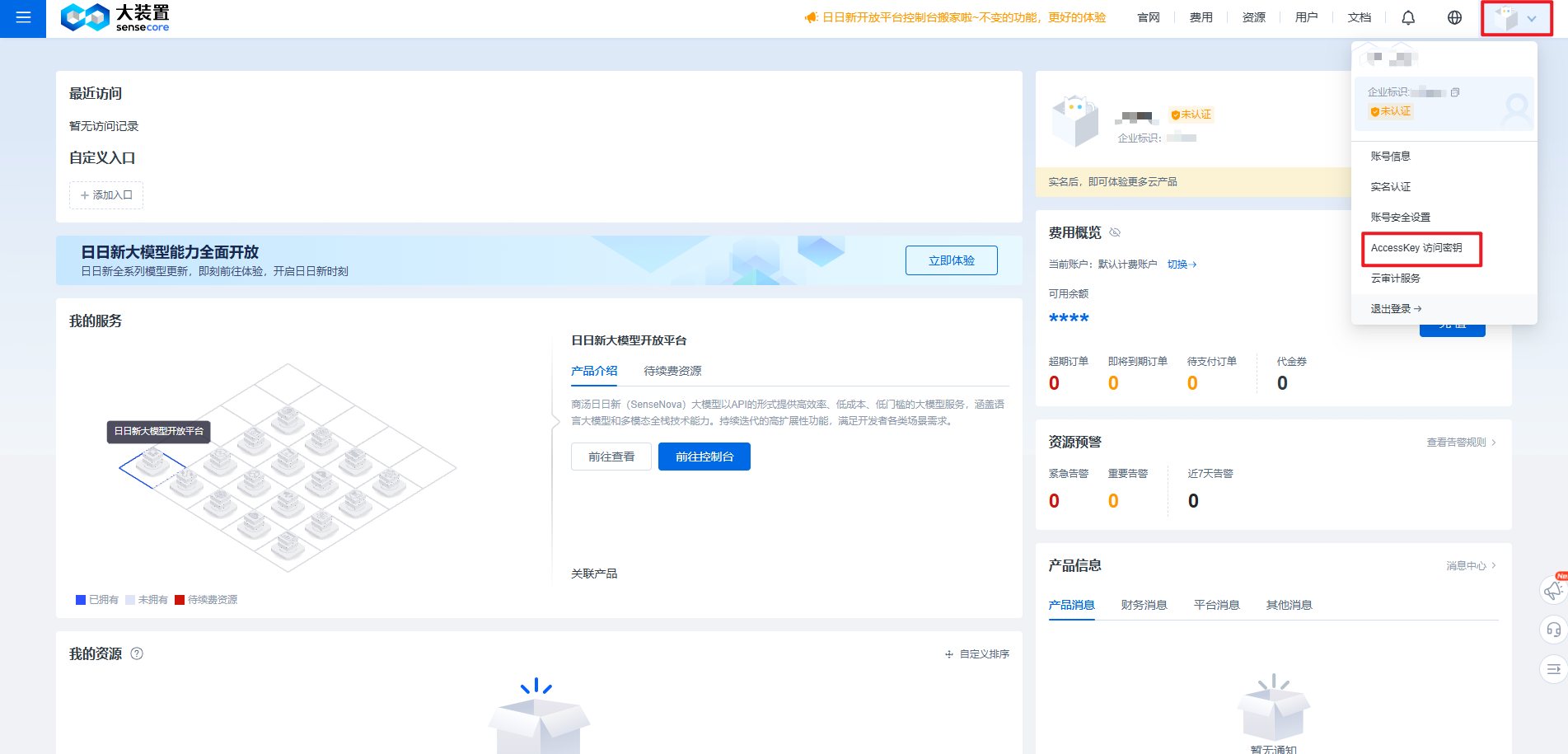
Click to add a new Access Key. View Access Key ID and Access Key Secret. You can click to download the CSV file to download Access Key information. The Access Key Secret is only displayed at creation and cannot be queried again.
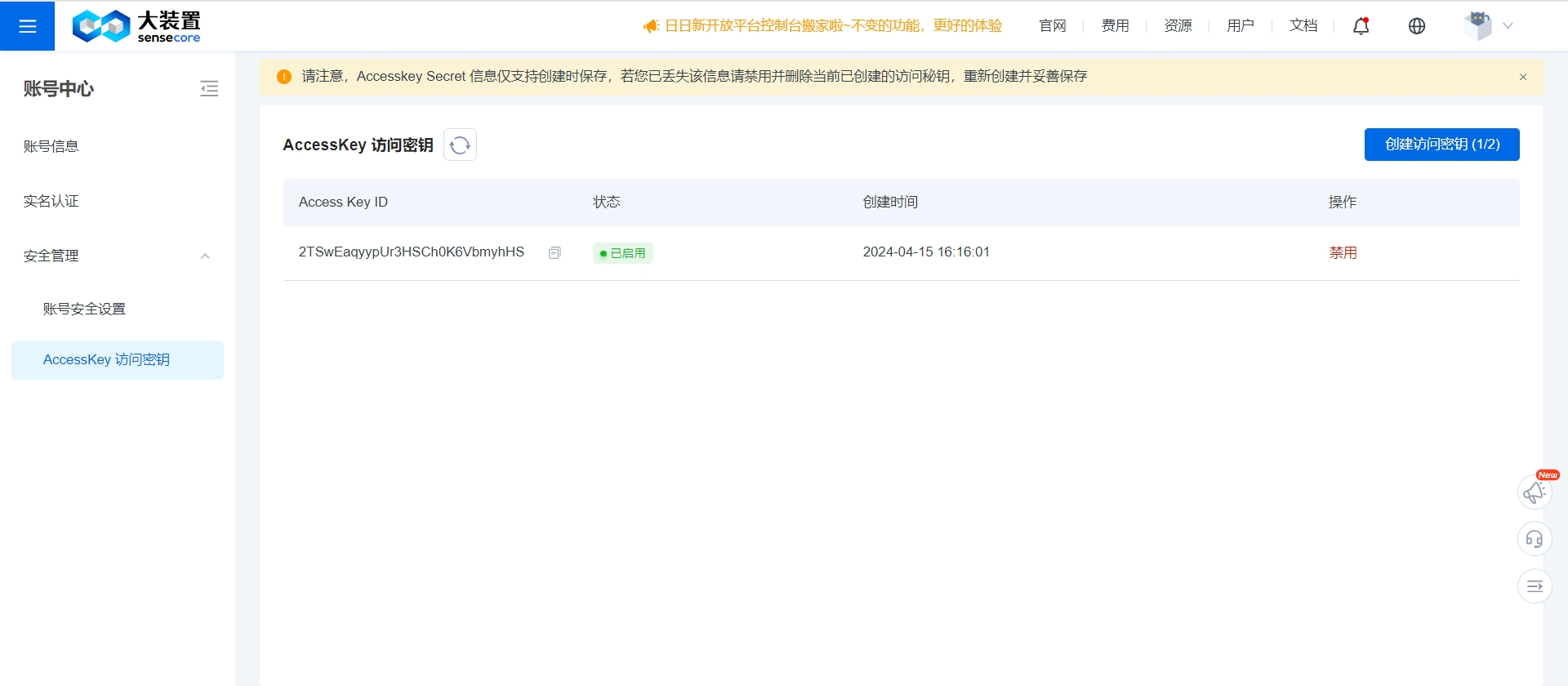
Note
If the Access Key is leaked or lost, you need to create a new Access Key.
Each user can have up to 2 Access Keys simultaneously.
4 Using SenseNova Services
Currently, the SenseNova services are provided in the form of APIs. You can view the API call instructions for various large models based on your actual business needs.
View API List
| Model Type | API List |
|---|---|
| LLM | LLM APIs |
| Multimodal Model | Multimodal Model APIs |
| TTS Model | TTS Model APIs |
| Vector Model | Vector Model APIs |
Different models may have different billing methods. Once you activate the SenseNova service and start using it, the platform will start billing according to the prices published in the Product Pricing Document.
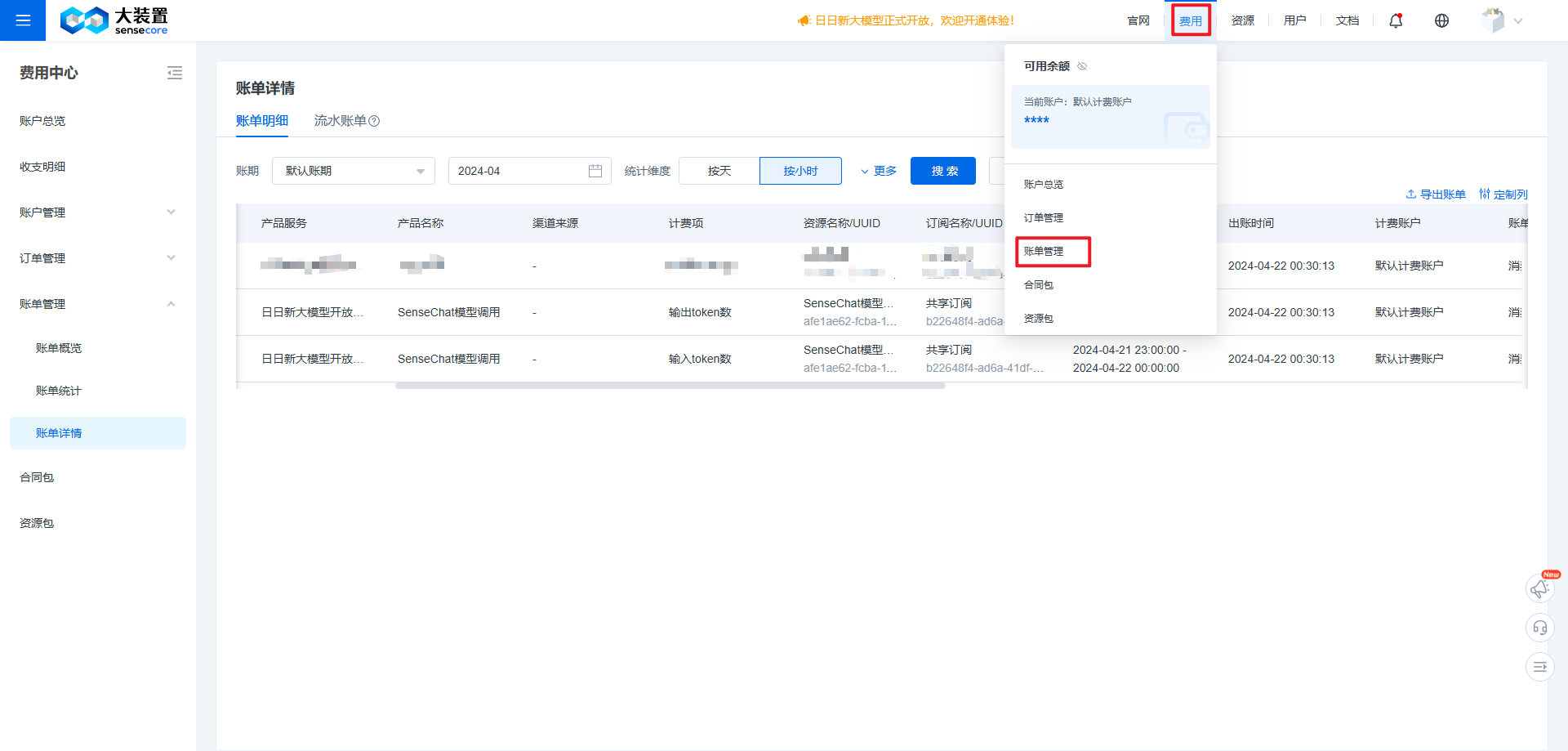
5 Viewing Bills and Usage
You can log in to the SenseCore Platform, go to Console - Billing Center - Bill Details to view detailed bills and transaction records, and check the usage and cost corresponding to each billing item per hour.