AI File Storage (AFS)
Product Overview
SenseCore AI File Storage (AFS) is a scalable parallel file storage system optimized for GPU-based high-performance computing scenarios, which is characterized by providing sub-millisecond-level data access, meeting high IOPS, high throughput, and low latency data read/write requests, and applying to high-performance computing scenarios such as AI training, autonomous driving, and video rendering.
Product Superiority
In-depth optimization for AI application requirements, providing high-performance parallel file storage with high reliability, high performance, low latency, and elastic scalability.
- In-depth optimization for AI application scenarios
- Realize in-depth optimization for AI application scenarios by using a distributed parallel architecture and supporting 100GB throughput, sub-millisecond-level latency, and millions of IOPS.
- High reliability
- Reach up to 99.9% availability of architecture design and stable performance for tens of billions of small files without attenuation.
- Elastic scalability
- Support online elastic scalability to meet the linear growth of capacity requirements and performance.
Product Features
- AI computing file storage
- Support the POSIX file protocol and efficiently execute AI computing programs without the need of adaptation and optimization.
- High throughput and low latency
- Give full play to the advantages of concurrent access in a parallel I/O architecture, and maintain ultra-low latency of sub-milliseconds when the cluster achieves high throughput through horizontal scaling.
- Close integration with SenseCore products
- Integrate with bare metal, container, and cloud lab computing platforms to facilitate support for the AFS file system; and support SenseCore container services and provide a high I/O capability for container services through the CSI interface.
Application Scenarios
- AI training
The main data type for AI model training is a large number of small files, which have low latency requirements.
- AFS is deeply integrated with AI application scenarios, supports access to massive small files, and improves AI training performance.
- It is connected with various computing clusters to provide ultra-high throughput and ultra-high IOPS capabilities.
- Autonomous driving
In the autonomous driving scenario, the daily data volume of each test vehicle is about 1TB. The data needs to be analyzed quickly, and the storage cost of massive data needs to be controlled.
- The high performance and elastic scalability of AFS strongly support the large capacity and high performance requirements brought about by customers’ business growth.
- AFS is combined with AOSS, and the data is archived to AOSS for long-term storage after model training in AFS.
- High-performance computing storage
AFS, as the center, is seamlessly integrated with bare metal, cloud containers, and cloud lab computing products to provide high-performance computing storage solutions for your diverse businesses.
- It also provides high throughput and high IOPS to improve computing efficiency and reduce the overall business cost.
- The architecture supports elastic scalability to achieve linear growth in capacity and performance.
About Billing
- Billing mode
Annual/monthly subscription: Annual/monthly subscription based on the TB capacity is a prepaid billing mode. The users need to plan the capacity specifications and duration of resources in advance, and complete the payment at one time. The subscription will take effect immediately after payment.
| Measurement item | Measurement mode | Billing mode |
|---|---|---|
| Storage capacity | Capacity specification and subscription duration | Annual/monthly subscription, one-time payment at the time of purchase (with the capacity measured in GB/TB, and the subscription duration measured in months/years) |
- Rules of use
- Once an annual/monthly subscription type file system is created, the subscription quota will be deducted according to the maximum capacity of your file system.
- The capacity configured at the time of purchase is the maximum storage capacity of the file system. If the capacity is exceeded, please expand it, otherwise you cannot perform write actions.
- Expiration reminder
- For the annual/monthly subscription service, users are notified through in-site messaging 5 days, 3 days, and 1 day before the expiration
- Arrears processing
- The data will be read-only within 24 hours after the subscription expires, will be retained but not readable for 5 days after the expiration, and will be automatically destroyed and cannot be restored 6 days after the expiration.
Quick Start
- Activate the service (register an account and apply for activation) — 02. Create a file system (create a file system based on business needs) — 03. Mount the file system (install the AFS client and mount the file system to the computing instance) — 04. Manage the file system (manage the AFS file storage through the console).
Create an instance quickly
Login with your username and password.

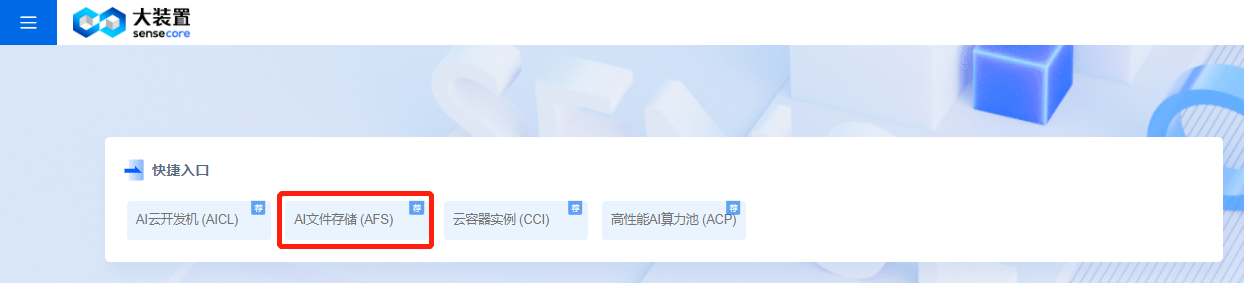
Find the file storage shortcut and click it to enter the File System List page.
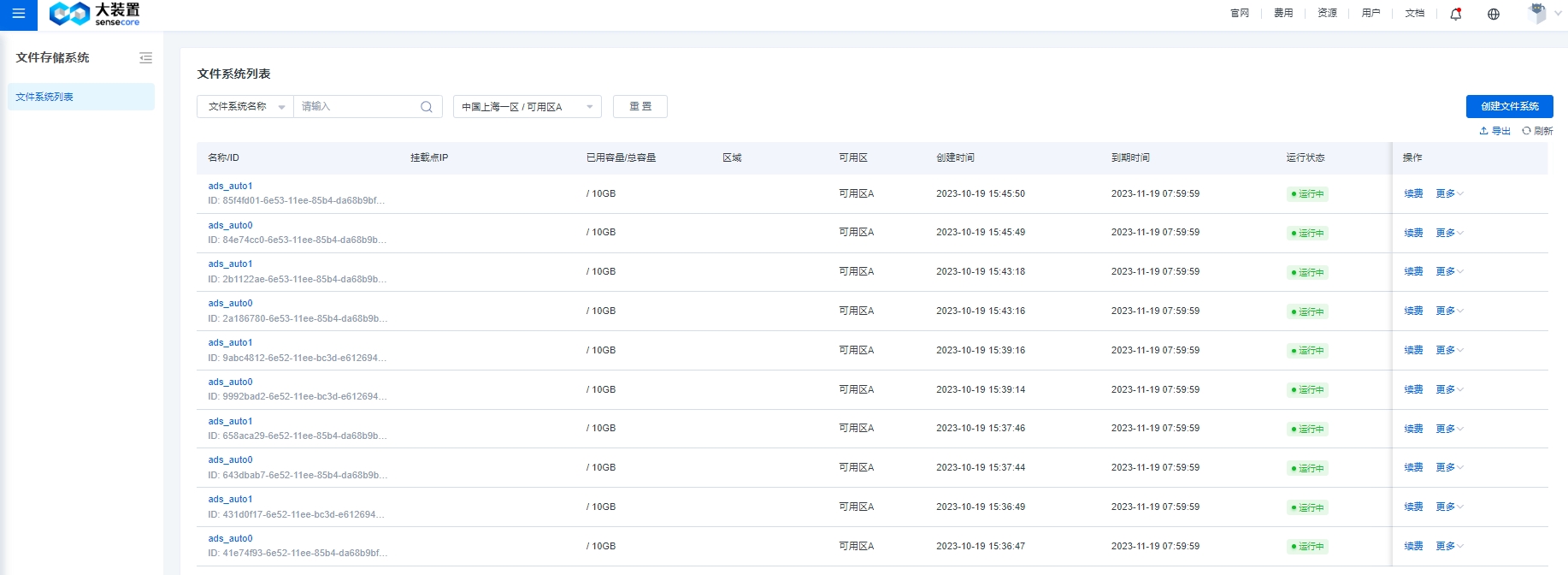
Click the Create File System button to create a file system.
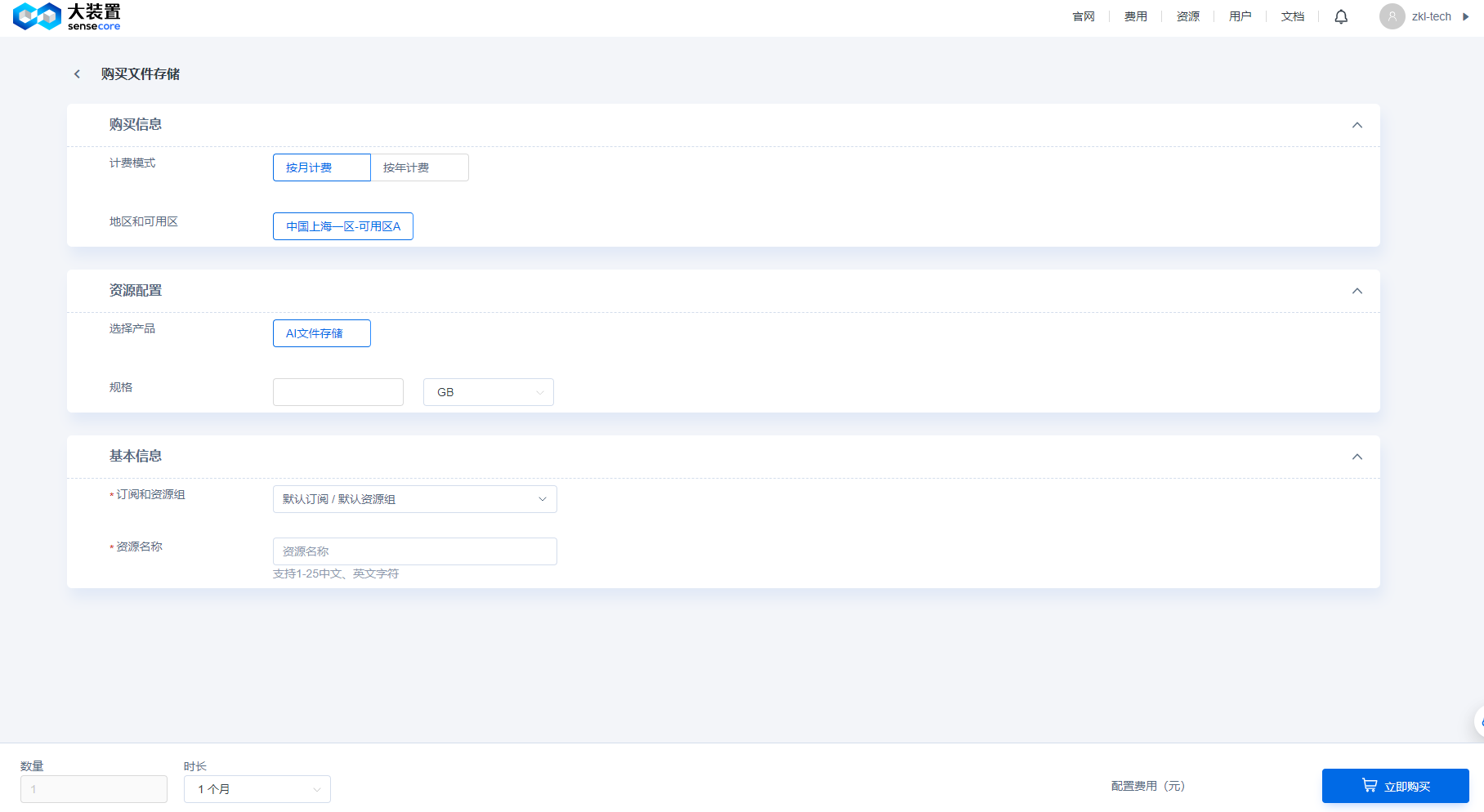
Fill in the file system purchase mode and specification, click Buy Now, and follow the wizard to complete the file system creation.
File System Authorization
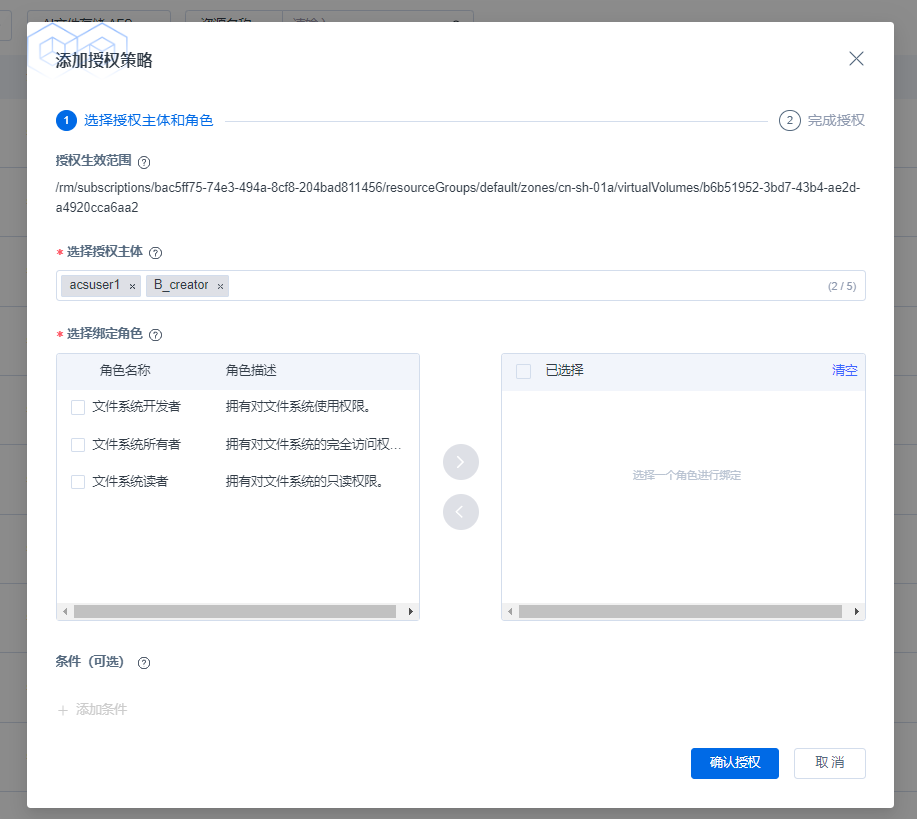
This section mainly introduces how to authorize other users or user groups in the same tenant read-only or read-write access to file system instances.
Select Resource Management from the resource drop-down button at the top right of the console and click it to make the Resource List page pop up, and then select the AI file storage (AFS) product in the resource list.
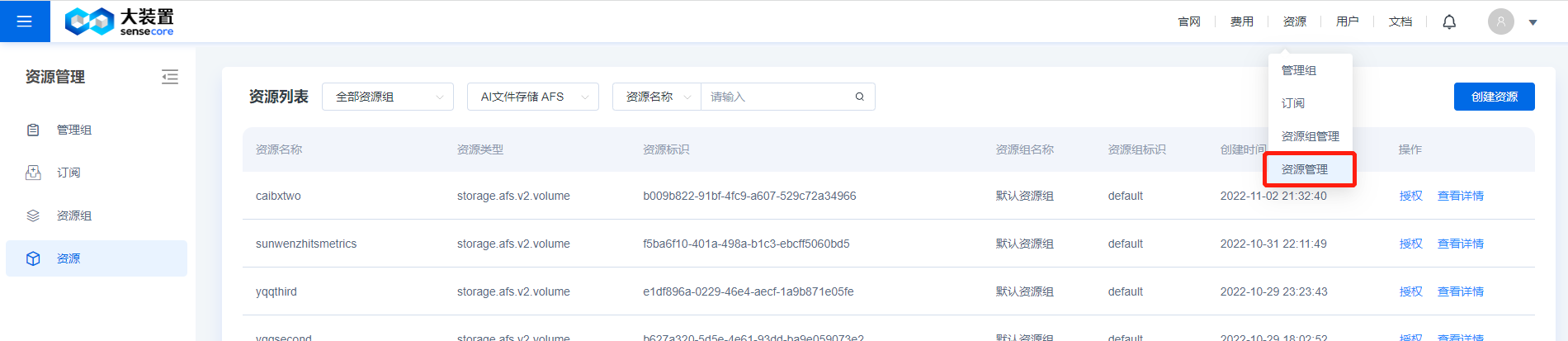
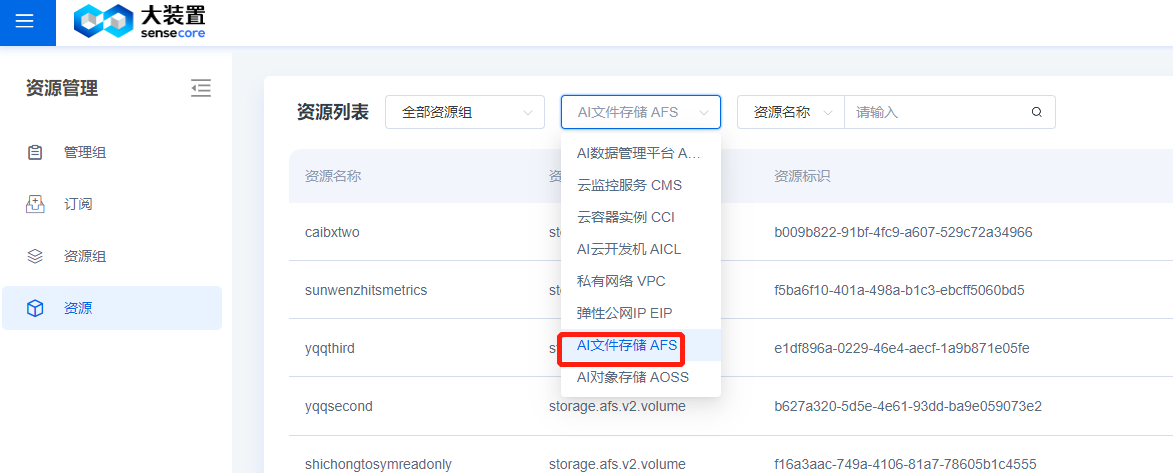
After you select AFS on the Resource List page, the resource list will display the created file system instances. Find the file system instance to be authorized and click the corresponding authorization button.

On the Authorization Policy page, select the user or user group to be authorized and the corresponding read-write access, and click OK to take effect.
Operation Guide
This section mainly helps users understand how to manage the AFS file system in the console, and mainly includes the display of file system related status, capacity usage, file system creation time and billing mode, and performance, and the operations such as creating a file system according to business needs
File system list
In the file system list interface, you can select different data centers to view all file systems in the user's current data center, visually display the file system related status information, and support viewing the specified file system through different filter conditions such as the keywords of the file system name and status.
The file system list includes the functions of creating a file system and managing the file system.
It supports file system renewal and scaling-up.Display the File System List
Support Multi-AZ options (Availability Zones A and B, to be updated on 2030.10.30)
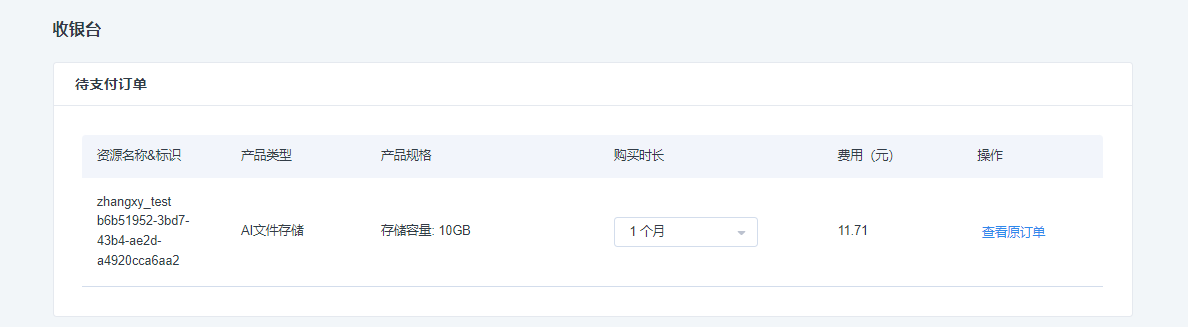
The service duration can be extended via [Renew], after clicking the [Renew] button, a renewal dialog box will pop up, just fill in the duration to be renewed and click OK.
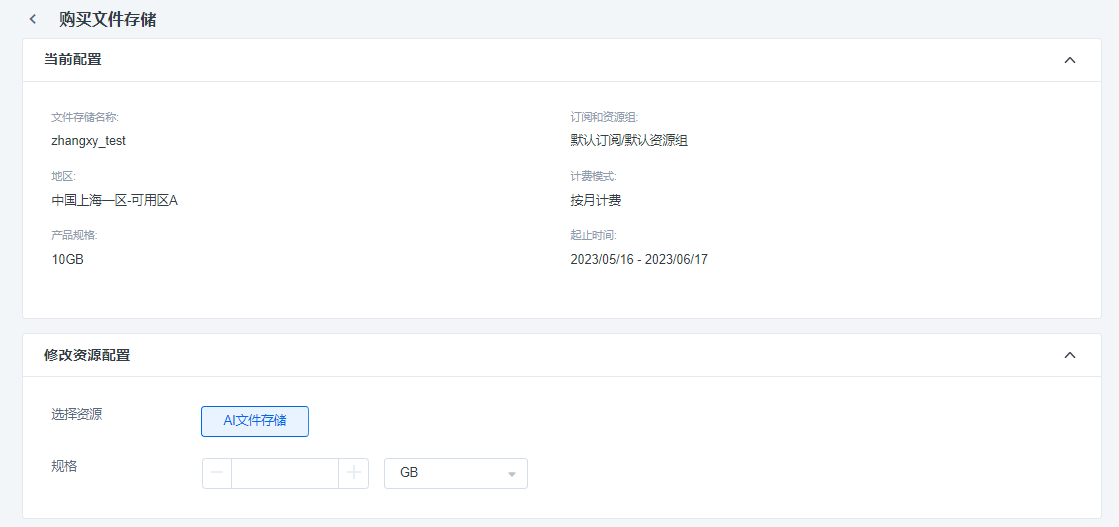
Click [Expansion] to increase the capacity of the file system, by opening the Expansion page, you can see the current configuration and the filled capacity to finally be reached.
File system details
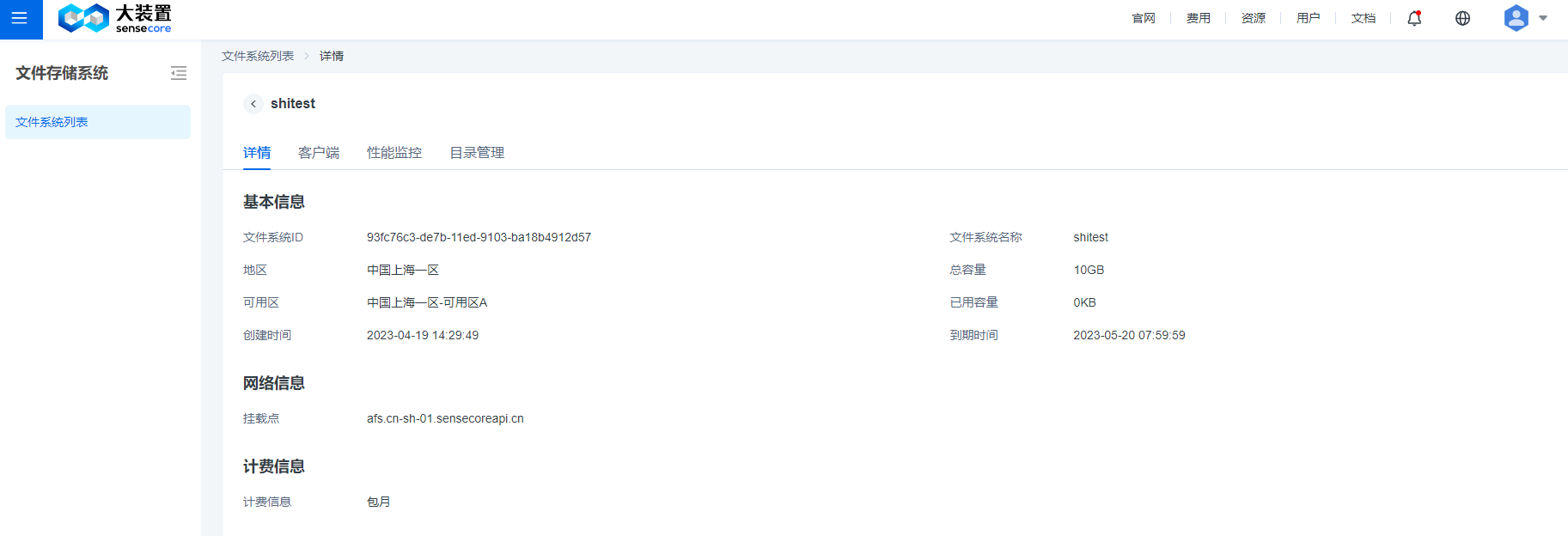
Select the target file system and click “Details” to enter the file system details management interface, where you can view more detailed information about the file system.
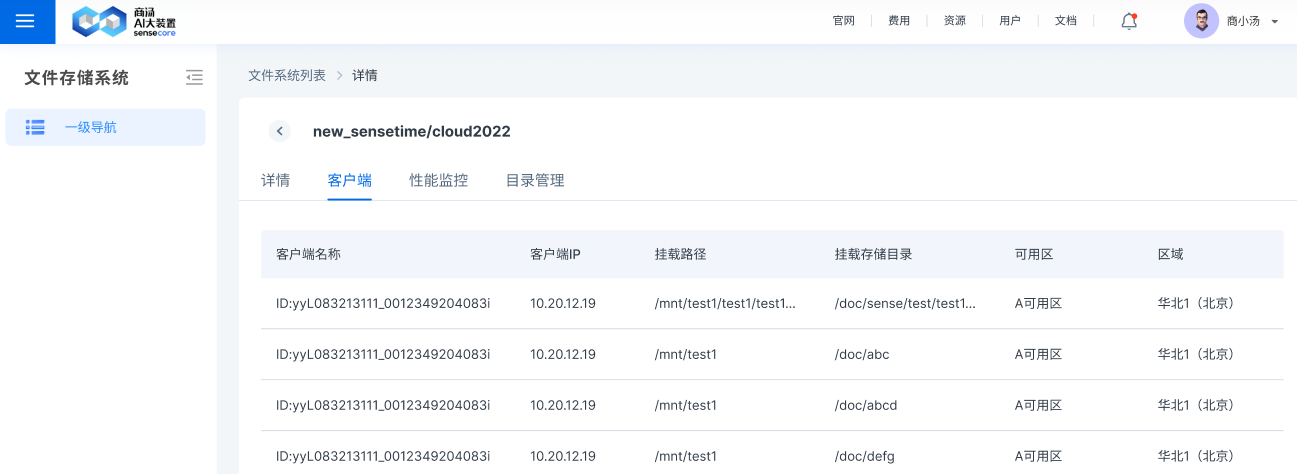
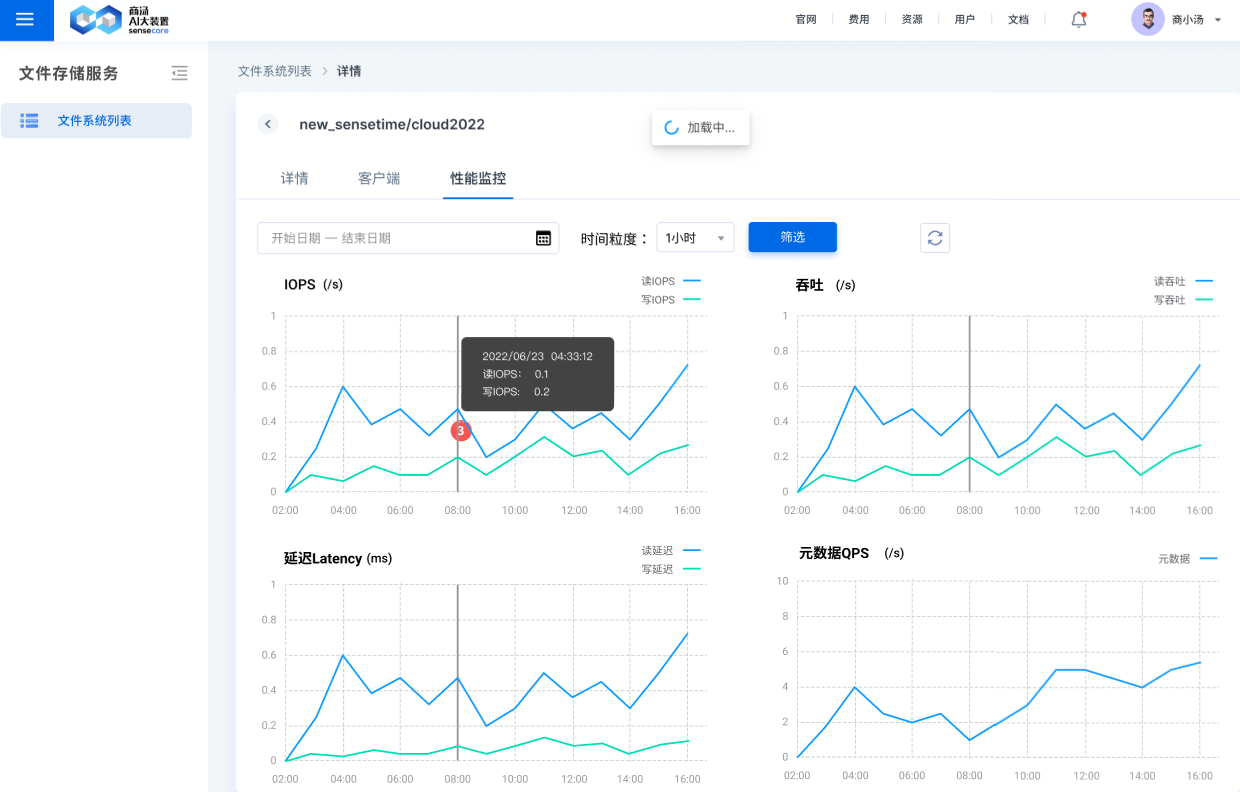
The Details are divided into three modules: File System Details, Client, and Performance Monitoring: the Details page displays the basic information, mount point, and billing information of the file system; the Client page displays the name and IP information of the compute node as well as the region and availability zone information; and the Performance Monitoring page displays the performance, such as the IOPS and throughput, of the file system space.
Display the Details Page
On the Details page, you can see the usage information, service hours, mount information and billing mode of the file system.
Display the Client Page
This page displays the name, client IP, mount path and mount storage directory, and availability zone and region information of the compute node, among which the client IP currently only displays the bare metal IP.
Display the Performance Monitoring Page
It displays the IOPS, throughput, latency, and metadata QPS information of the file system.
Directory Management
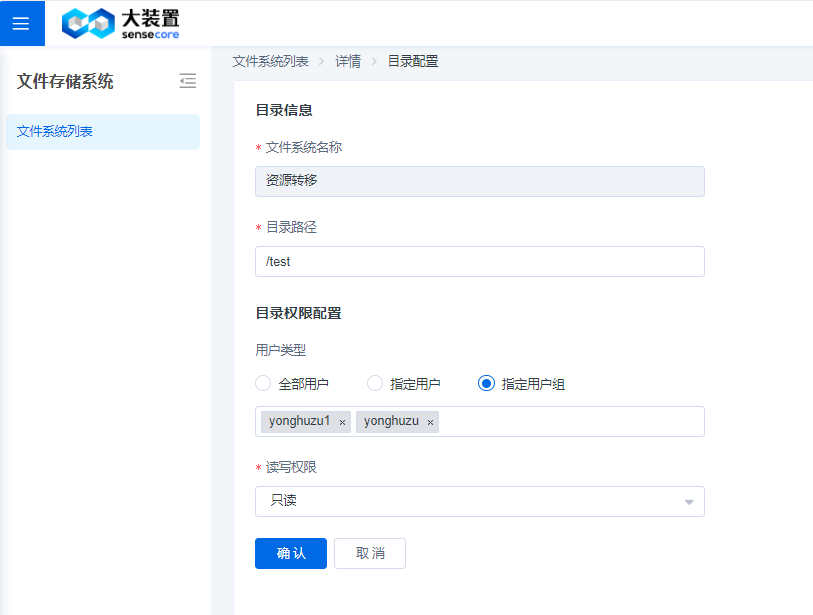
On the Directory Management page, users can authorize all users in the tenant read-only or read-write access to a specified directory, and can also authorize a specified user read-only or read-write access.
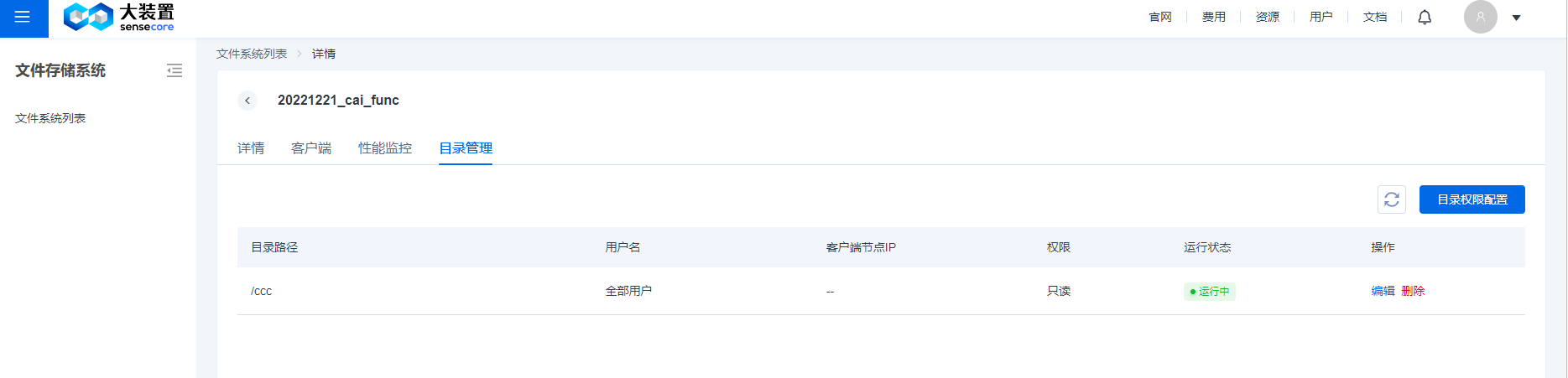
You can flexibly select user types for directory access configuration: you can select all users or specified users in the tenant or a specific user or user group.
DELETE Function
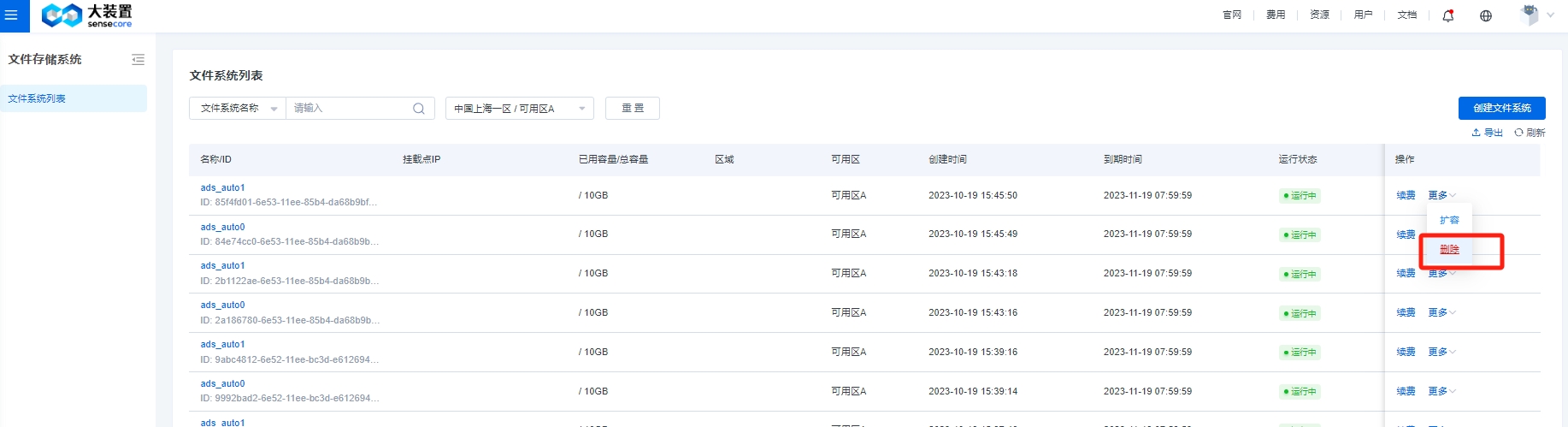
The Delete button has two uses. If you click the [Delete] button during the service period, you will be directed to the Unsubscribe page to unsubscribe from resources; if you want to release resources outside the service period, such as the grace period and the retention period, once you click [Delete] and make re-confirmation, the file system will be deleted and the data in it cannot be recovered.
SenseCore2.0 Bare Metal Environment Client Installation and Usage Guide
SenseCore2.0 Bare Metal Environment Client Installation and Usage Guide
Installation
Currently, the 2.0 environment includes Shanghai 02, Saudi Arabia, and Yancheng. Please download the required software packages and configuration files according to your machine environment.
You can download them using the wget command:
#shanghai02
wget http://quark.aoss.cn-sh-02.sensecoreapi-oss.cn/quarkafs/release/v1.2.22/v1.2.22.1-client0-cn-sh-02a-cn.conf
wget http://quark.aoss.cn-sh-02.sensecoreapi-oss.cn/quarkafs/release/v1.2.22.1/quarkfs_client_deploy.tar.gz
wget http://quark.aoss.cn-sh-02.sensecoreapi-oss.cn/quarkafs/release/v1.2.22.1/fushionbs-cn-sh-02a-cn.json

#Saudi Arabia
wget http://quark.aoss.sa-ryd.api-oss.sensetime.com.sa/quarkafs/release/v1.2.22/v1.2.22.1-client0-sa-ryd-01a-cn.conf
wget http://quark.aoss.sa-ryd.api-oss.sensetime.com.sa/quarkafs/release/v1.2.22.1/quarkfs_client_deploy.tar.gz
wget http://quark.aoss.sa-ryd.api-oss.sensetime.com.sa/quarkafs/release/v1.2.22.1/fushionbs-sa-ryd-01a-cn.json

#Yancheng
wget http://quark.aoss.cn-yc-01.sensecoreapi-oss.cn/quarkafs/release/v1.2.22/v1.2.22.1-client0-cn-yc-01a-cn.conf
wget http://quark.aoss.cn-yc-01.sensecoreapi-oss.cn/quarkafs/release/v1.2.22.1/quarkfs_client_deploy.tar.gz
wget http://quark.aoss.cn-yc-01.sensecoreapi-oss.cn/quarkafs/release/v1.2.22.1/fushionbs-cn-yc-01a-cn.json
After downloading, please extract the software package. After extraction, pay attention to the extracted bin and lib directories.
tar -zxvf quarkfs_client_deploy.tar.gz
Rename the json configuration file starting with fushionbs and place it in the specified location (if customization is required, you need to modify the fbs.conf path in the conf file).
cp fushionbs-****.json /opt/applications/conf/fushionbs.json
Mounting and Usage
Mounting requires root privileges.
Ubuntu 24 environment:
{extracted_directory}/bin/quarkfs_client -o ak={replace_with_actual_ak} -o sk={replace_with_actual_sk} -o volumeID={replace_with_actual_volumeID} -o endpoint="{endpoint_address_in_afs_volume_info}" -o env={replace_with_environment_tech/cn} -o source=terminal -o conf={replace_with_downloaded_client.conf_file_path} {mount_point}
Non-Ubuntu 24 environment:
{extracted_directory}/lib/ld-linux-x86-64.so.2 {extracted_directory}/bin/quarkfs_client_with_libc -o ak={replace_with_actual_ak} -o sk={replace_with_actual_sk} -o volumeID={replace_with_actual_volumeID} -o endpoint="{endpoint_address_in_afs_volume_info}" -o env={replace_with_environment_tech/cn} -o source=terminal -o conf={replace_with_downloaded_client.conf_file_path} {mount_point}
Notes:
1.Actual parameters may vary in real scenarios. The {} brackets and their contents above need to be replaced.
2.Do not mount directly to /root or /home paths; if /data is mounted with a local disk, file storage cannot be mounted to /data. It can be mounted to subdirectories, such as: /root/a, /data/b
3.To allow other users to access files on the mount point, add -o allow_other
4.To enable the file system's default permissions to control access to files and directories on the mount point, add -o default_permissions
5.If the conf parameter is not specified, /usr/quarkfs/conf/client0.conf will be used by default.
6.If the env parameter is not specified, "cn" will be used by default.
7.The subdirectory path must be a first-level subdirectory. The typical usage is to assign one first-level subdirectory to each user for isolation. The subdirectory needs to be created in advance, and -o subdir=/{subdirectory_path} needs to be added.
Viewing and Verifying Availability
View available storage capacity: df -h /mnt/quarkfs
Enter the target directory (e.g., /mnt/quarkfs) and create directories or files (using operations such as vim/touch, etc.)
Unmounting Storage Directory
Unmount as needed, requires root privileges: umount <mount_point>
FAQ
What is AI File Storage (AFS)?
SenseCore AI File Storage (AFS) is a scalable parallel file storage system optimized for GPU-based high-performance computing scenarios, which is characterized by providing sub-millisecond-level data access, meeting high IOPS, high throughput, and low latency data read/write requests, and applying to high-performance computing scenarios such as AI training, autonomous driving, and video rendering.
What is a POSIX client?
The POSIX client is proxy client software deployed on containers and bare metal servers, and is responsible for data communication between compute nodes and storage backends.
What is the mount point of AFS?
The mount point is the request entry for the container instance/bare metal server to access the file storage.
What operating systems does the client support?
It supports the Linux operating system of CentOS 7.X or above, Ubuntu 16.04/18.04/20.04, and Rocky Linux 8.6.
What is the number of computing instance connections?
A single file system supports 2000 instance connections by default.
After the file system is mounted, does it support non-root users to read and write files?
Version 2023.3.31 supports non-root users to read and write files.