Data Management
Introduction
Data management is primarily designed for model fine-tuning. It supports the creation of various data types, helping users manage data for fine-tuning and evaluation tasks more conveniently and efficiently.
User Guide
一、Preparations Before Data Upload
- Prepare Data:
- Model fine-tuning and evaluation require data in specific formats. To ensure task success, data format validation is performed during upload. Data is typically in a dialogue format. Currently, OpenAI format is supported. For details, see section 2-1, "Create Data".
二、Create Data
Create Data:
- Enter the "Large Model Development Platform AI Studio" module and click "My Data" to access the data list.
- Click "New", fill in the data name and description, select the data type, purpose, format, and source. After selecting local data, proceed to create the data.
- Single file upload limit is 1GB, maximum of 100 files, and total size must not exceed 4GB.
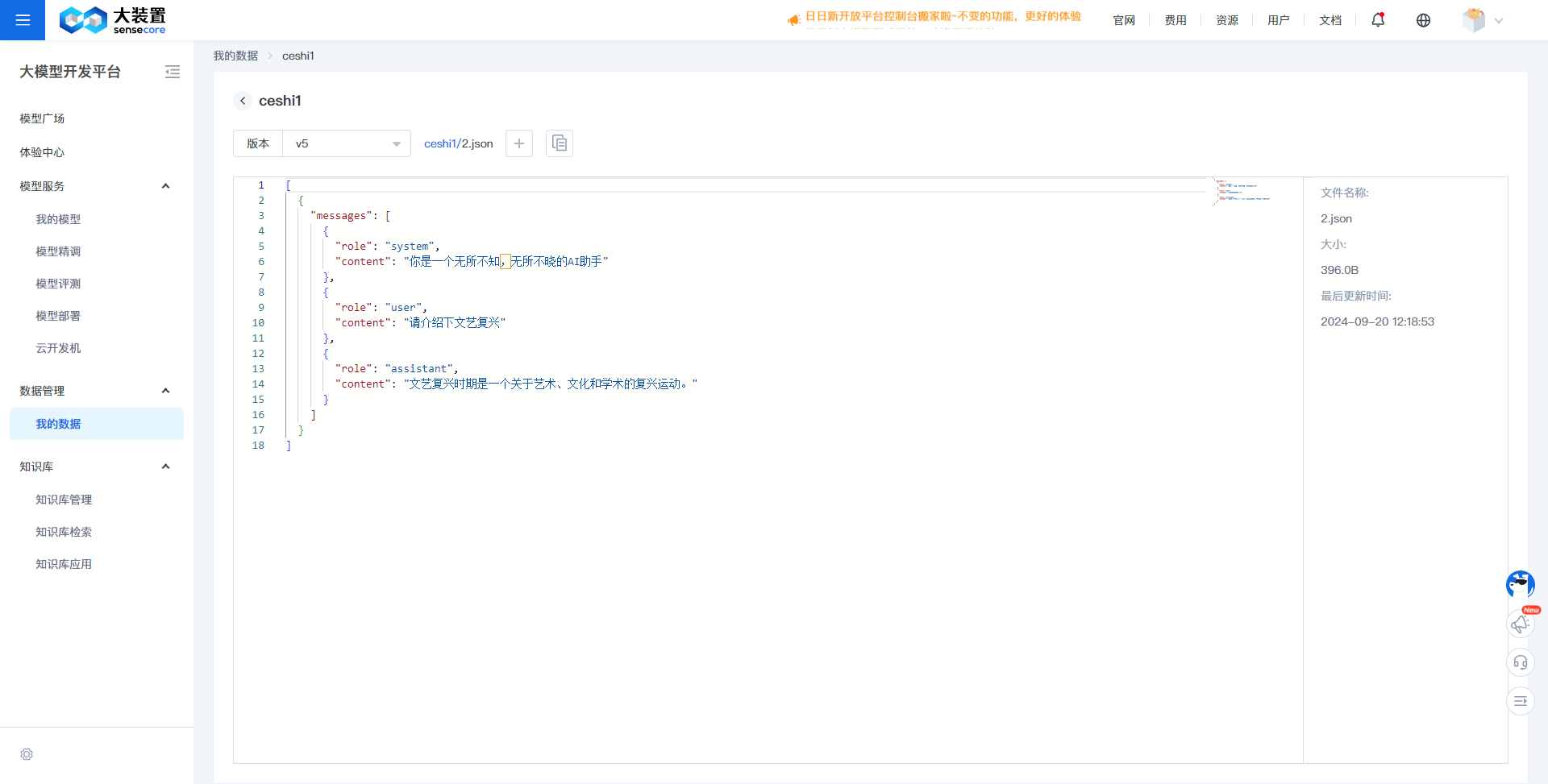
- Currently, only OpenAI format data is supported, with file types of json and jsonl. Specific examples are as follows:
[
{
  "messages": [
    {
      "role": "system",
      "content": "You are an all-knowing, omnipotent AI assistant"
    },
    {
      "role": "user",
      "content": "Please introduce the Renaissance"
    },
    {
      "role": "assistant",
      "content": "The Renaissance was a revival movement concerning art, culture, and academia."
    }
  ]
}
]{"messages": [{"role": "system", "content": "You are a helpful assistant"}, {"role": "user", "content": "Please introduce the Renaissance?"}, {"role": "assistant", "content": "The Renaissance was a revival movement concerning art, culture, and academia."},{"role": "user", "content": "How about sculpture?"}, {"role": "assistant", "content": "Sculpture during the Renaissance was also very famous, with several world-class masters emerging from this period"}]}
{"messages": [{"role": "system", "content": "You are a helpful assistant"}, {"role": "user", "content": "Please introduce the Renaissance?"}, {"role": "assistant", "content": "The Renaissance was a revival movement concerning art, culture, and academia."},{"role": "user", "content": "How about sculpture?"}, {"role": "assistant", "content": "Sculpture during the Renaissance was also very famous, with several world-class masters emerging from this period"}]}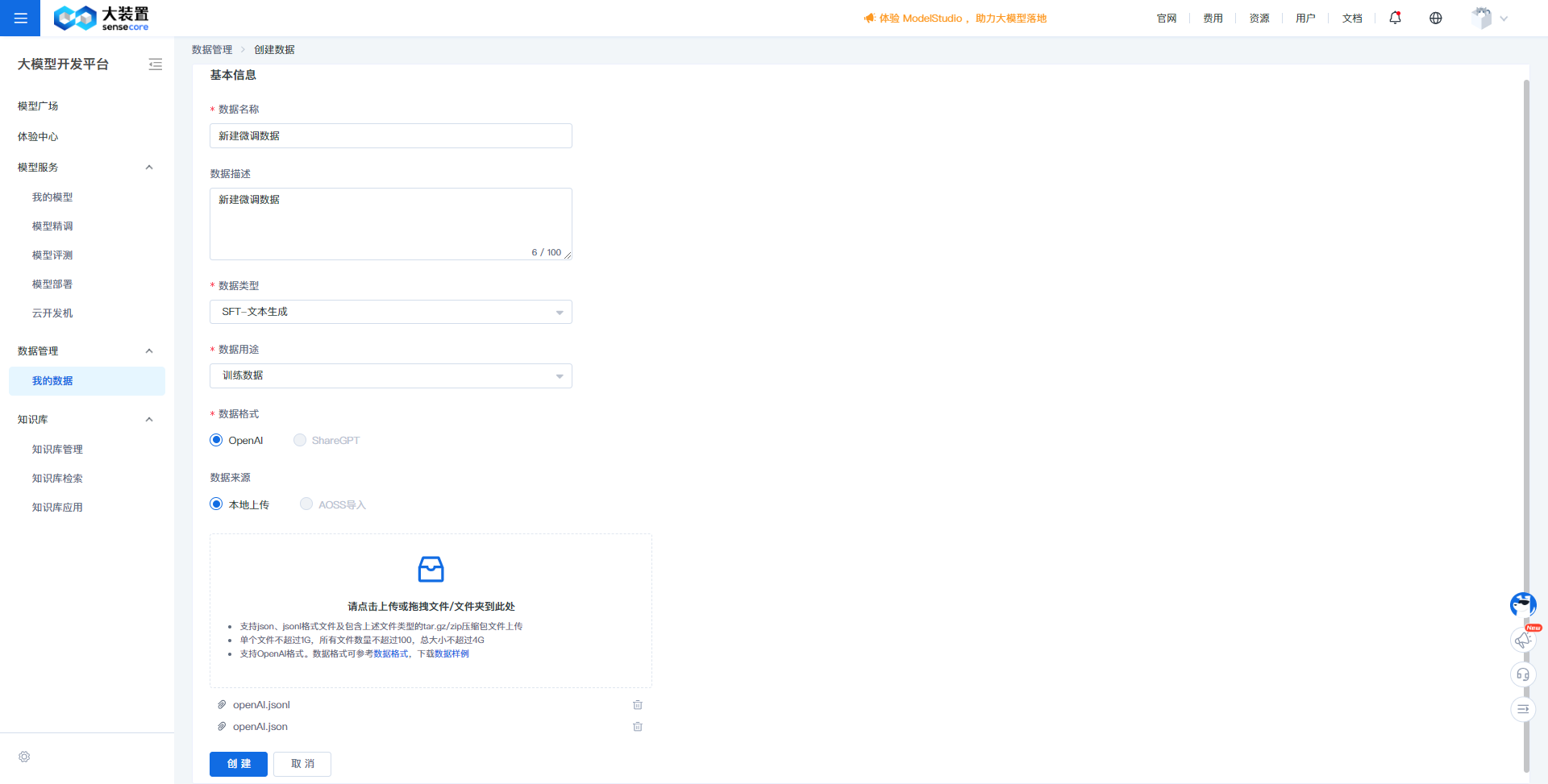
Data Details:
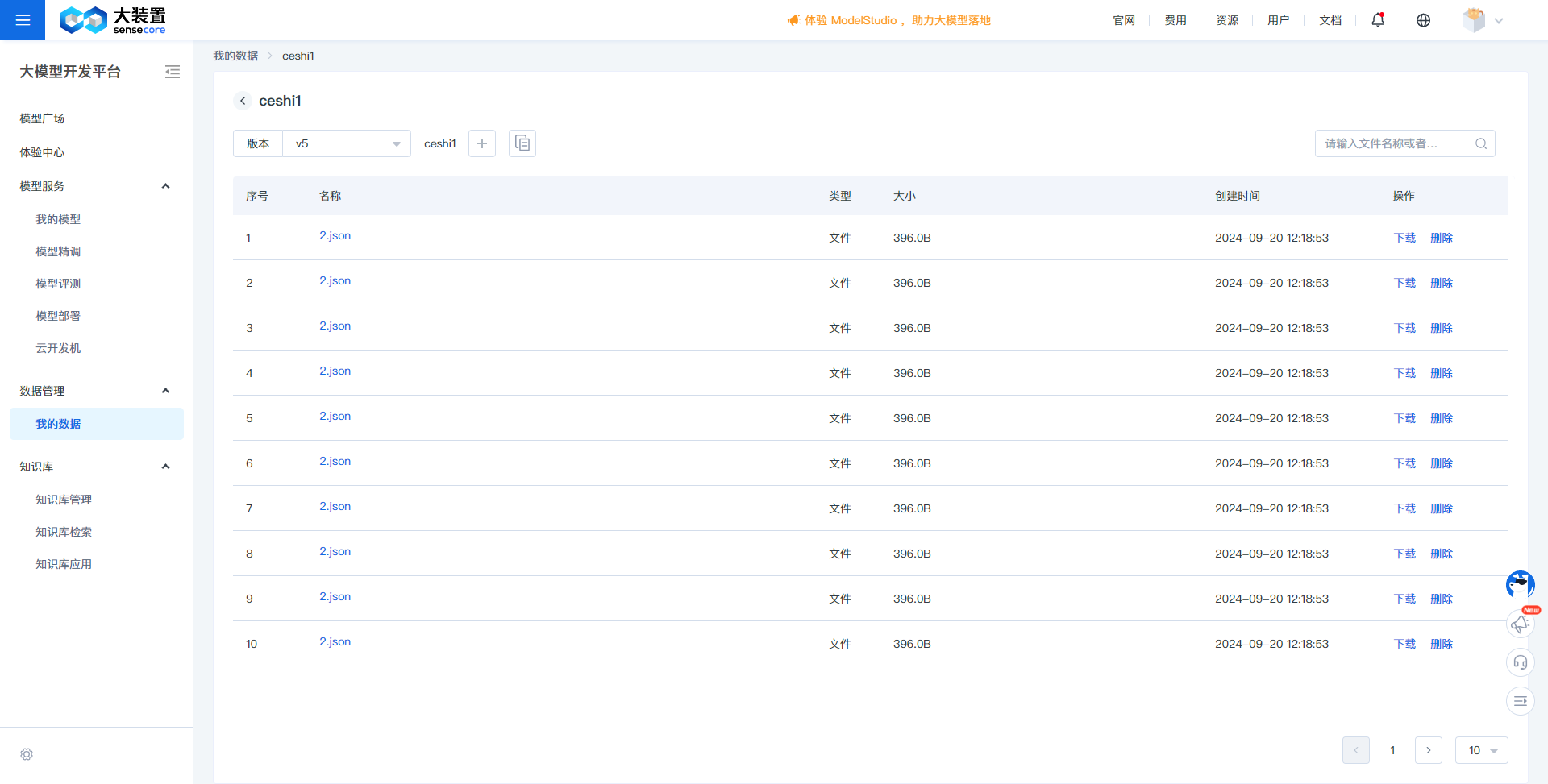
- On the data list page, click a data name to access the data details.
- Data details primarily display information about the data files, including version information and file lists.
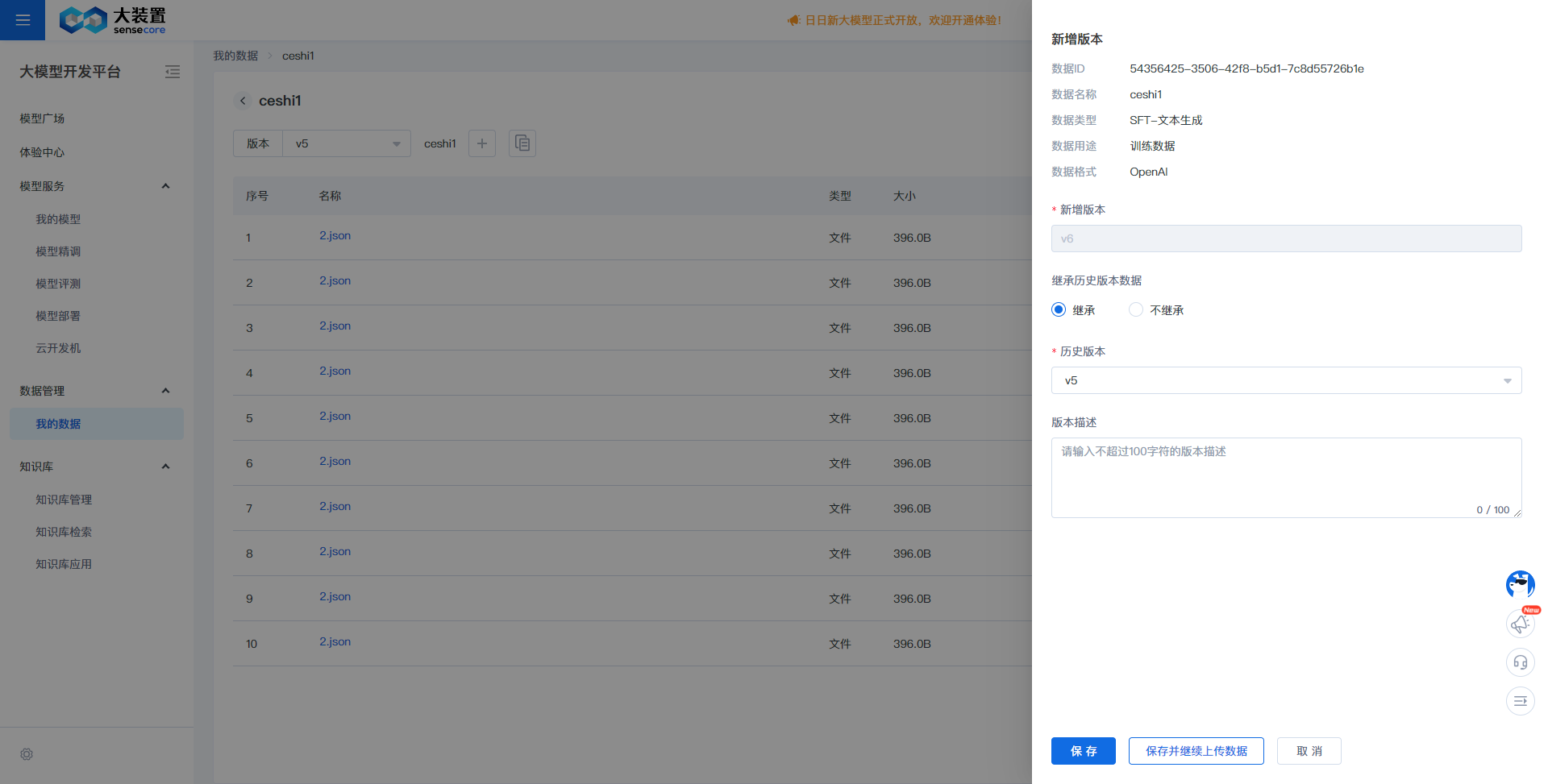
Add Version:
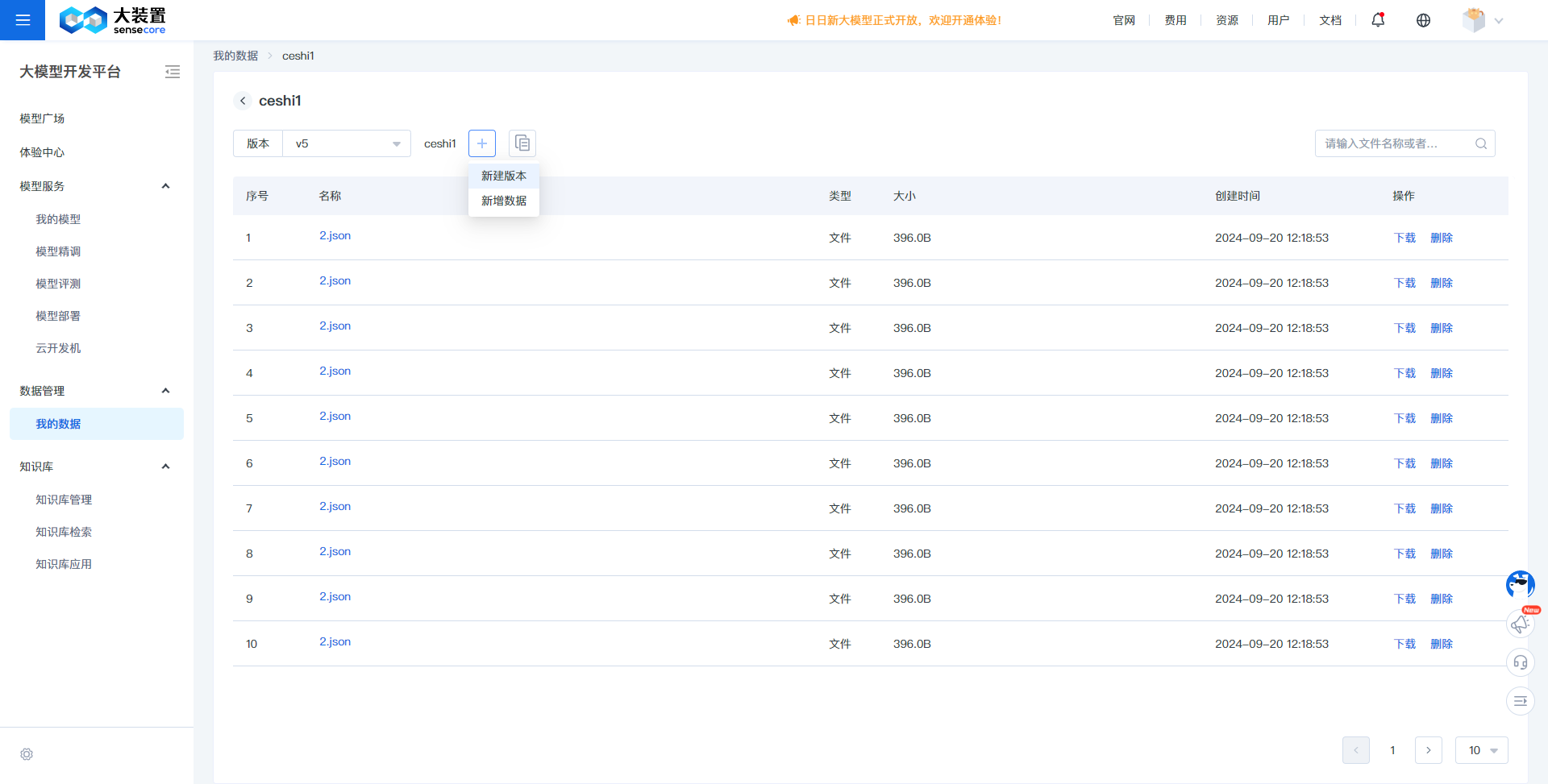
- Click "New" to add a version.
- When adding a version, the version number is incremented by default. Select whether to inherit data from the historical version. If not selected, the new version will have no data, requiring new data upload.
Upload Data:
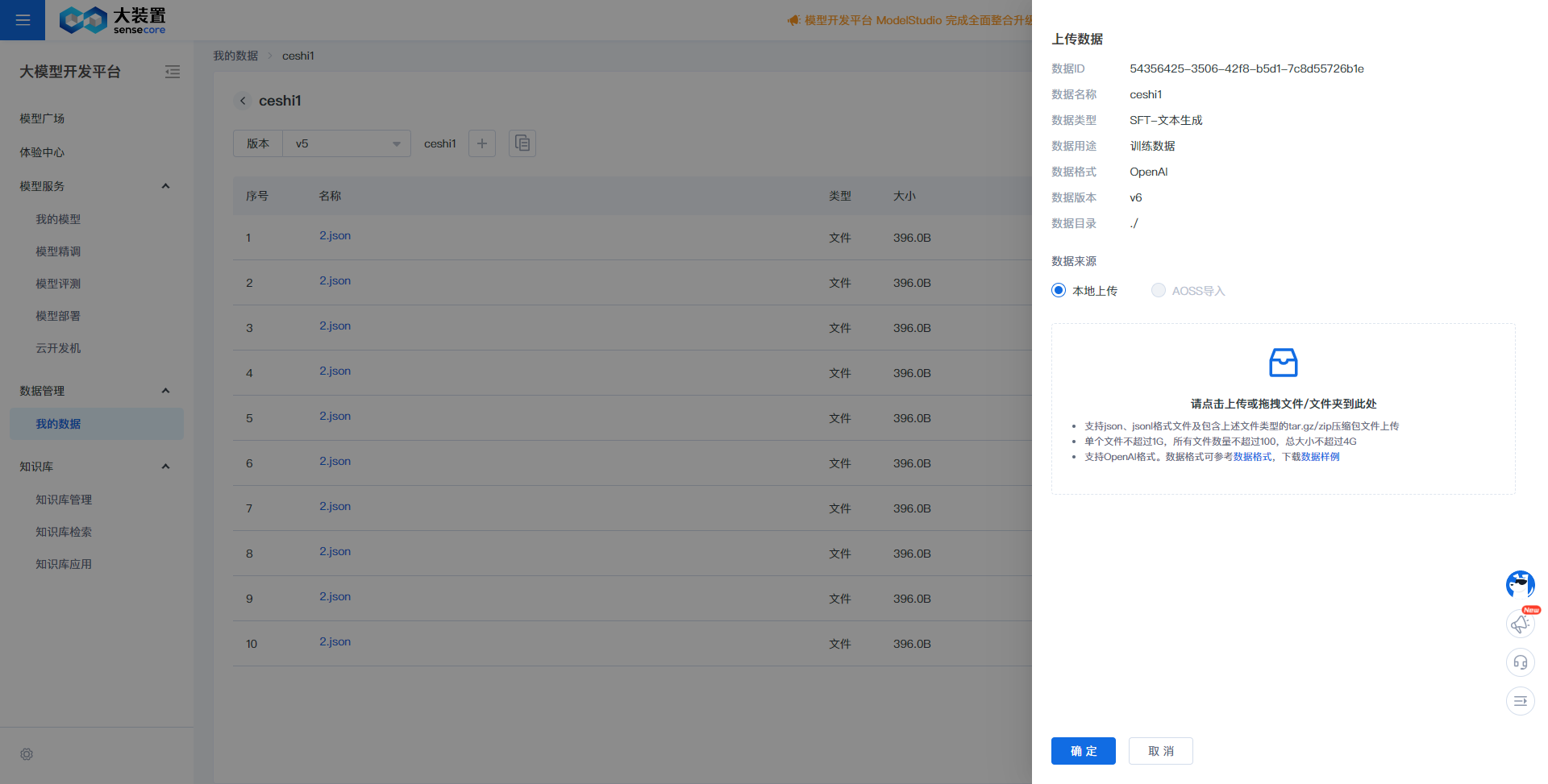
- Click "New" to add data, or continue to upload data after creating a new version.
- Select local files. Single file upload limit is 1GB, maximum of 100 files, and total size must not exceed 4GB.
- Currently, only OpenAI format data is supported, with file types of json and jsonl.
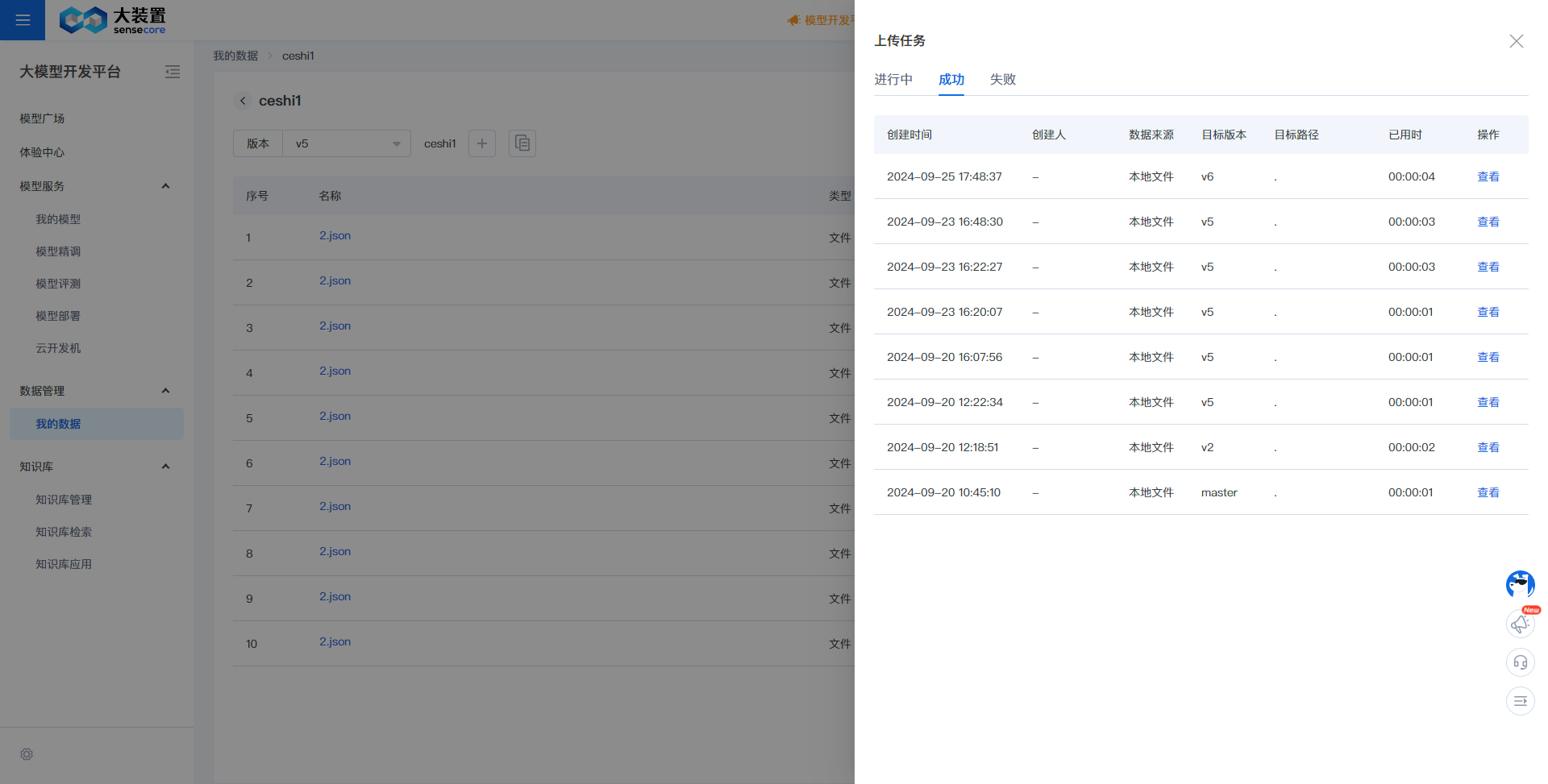
- After uploading files, upload progress can be viewed in the status details.
Data Preview:
- In the data details, click a file to view its content.
- File content can be searched via keywords.