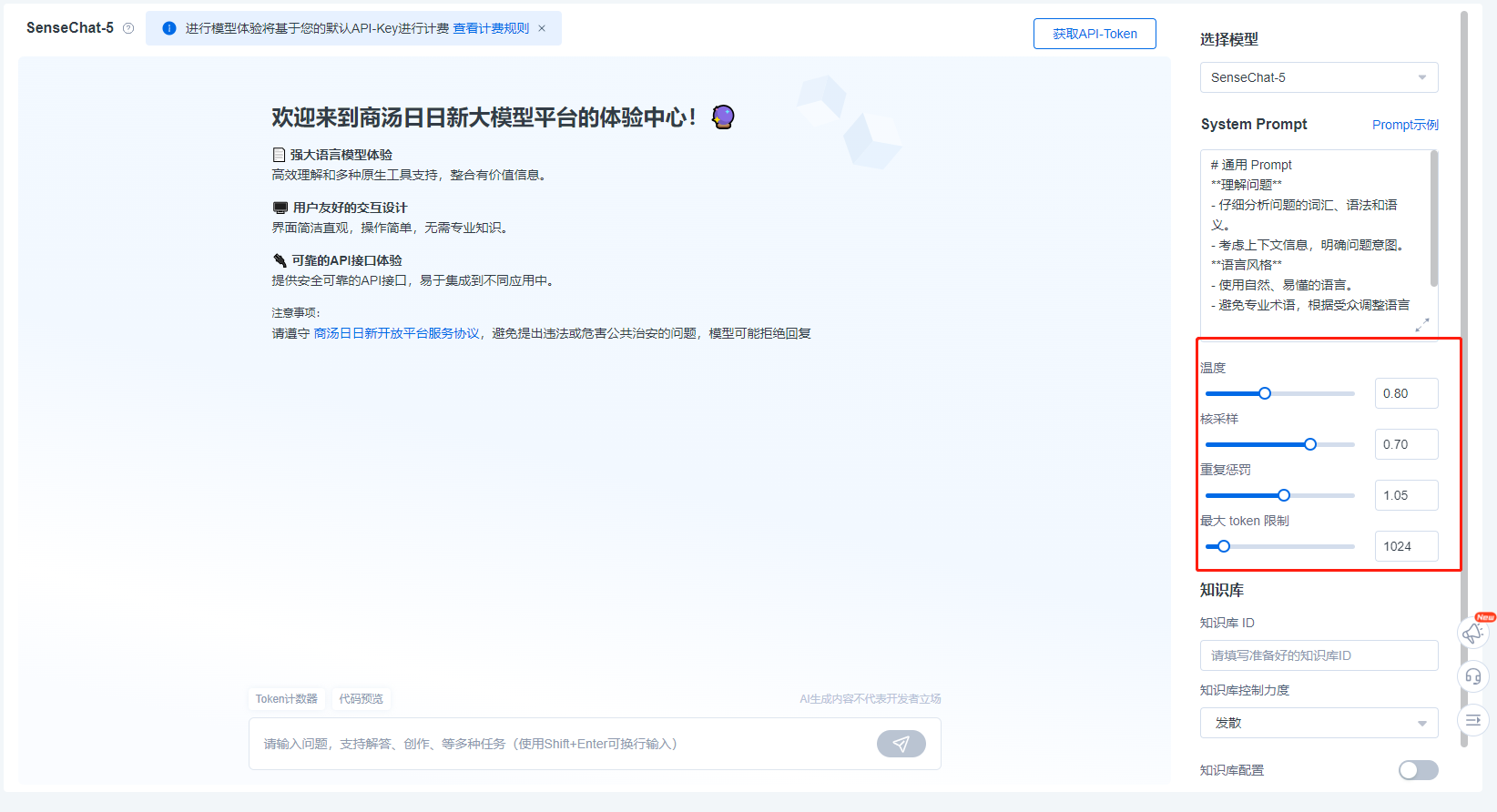
Model Experience Center
Introduction
An interactive page that provides users with a quick way to experience model capabilities.
User Guide
Experience Instructions
After entering the Experience Center page, high-quality models for common scenarios will be recommended upon the first visit. You can click to send a message and directly start a conversational experience with the large language model. Alternatively, you can click "Select More Models" to choose and experience your preferred model.
- Steps to Complete a Full Conversation:
- To complete a conversation, simply follow these three steps:
- Step 1: Upon first entry, you must first select a model.
- Step 2: Confirm the Prompt and model parameters.
- Step 3: Input your question or description in the input box and click send.
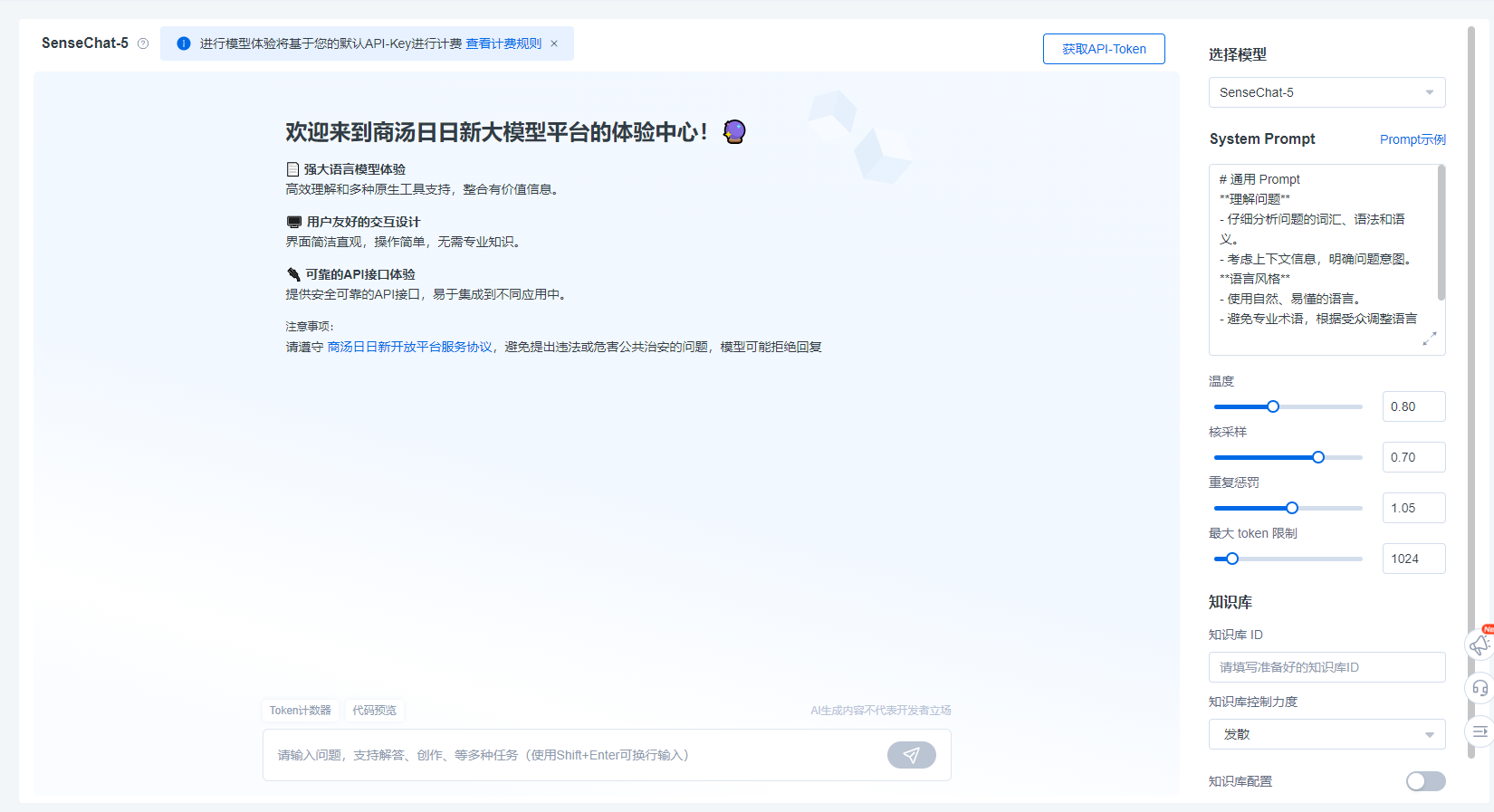
- Select Model:
- Click "Select Model" in the upper right corner to view all general conversation models available for you to call. Selection completes the switch.
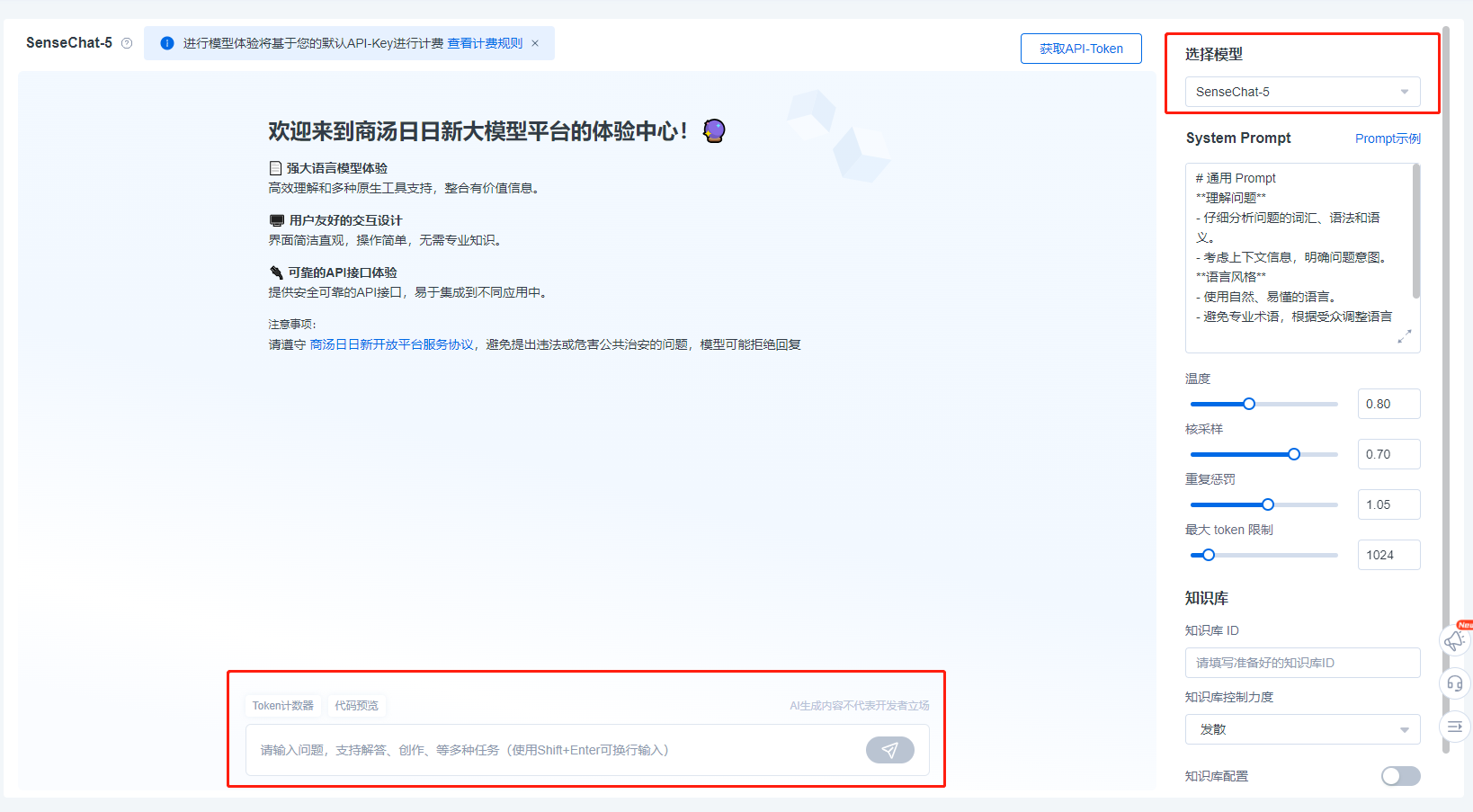
- Prompt Template:
- Click "Prompt Example" to view all system-built-in prompt scenario templates.
- Select a template that interests you or is most similar to your real scenario to view the example or use it directly.
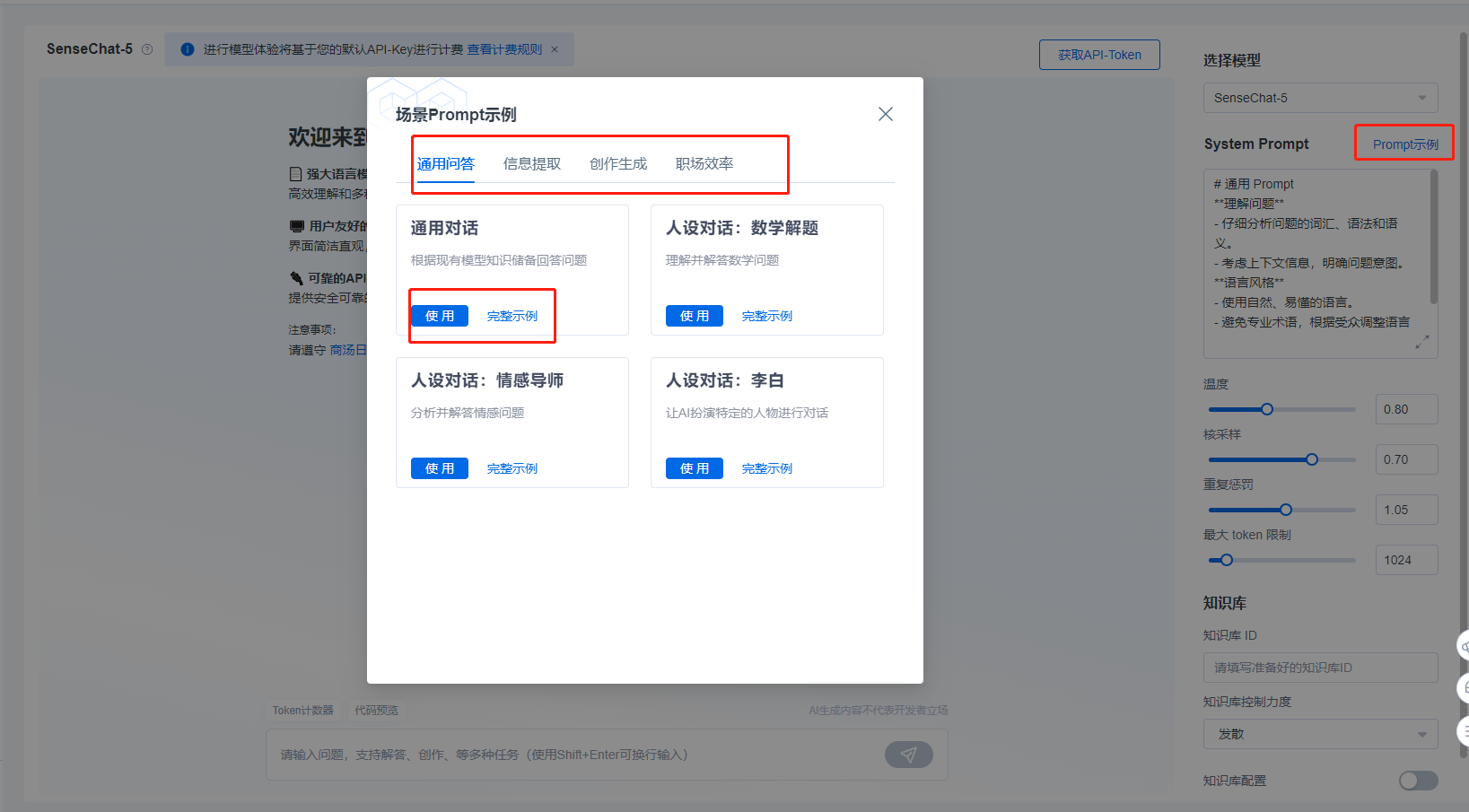
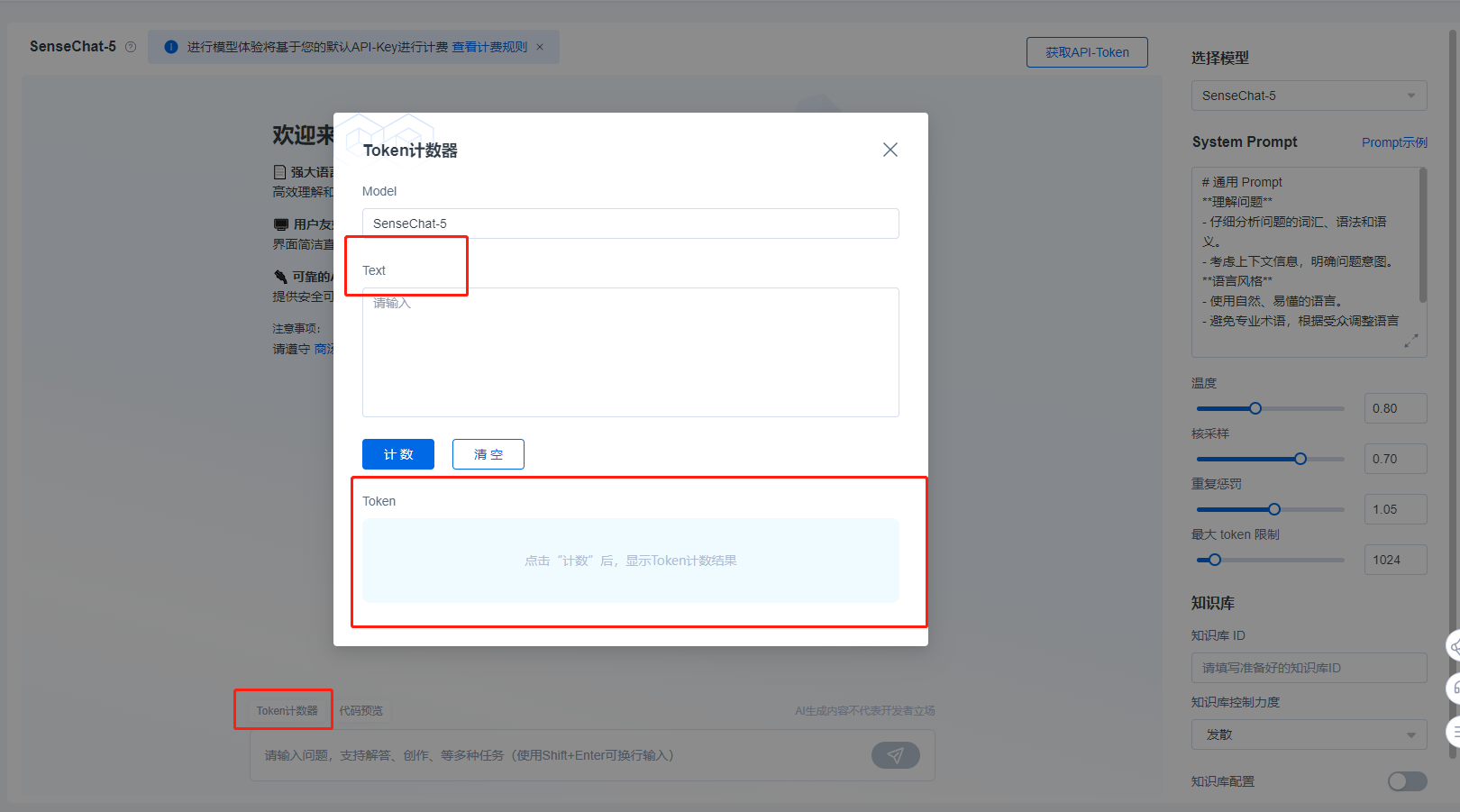
- Token Counter:
- By clicking the token counter above the chat box, you can copy the content you want to calculate the token count for into the text area to achieve token calculation for different models.
- Model Parameter Settings:
- The platform displays several adjustable parameters for the model. Different parameter settings will affect the responses generated by the model. You can set them according to your own needs. Click "Advanced Settings" below the model to adjust the model's parameters.
- A "?" follows each parameter name. Hovering your mouse over it will display a detailed description of the parameter, helping you understand it.